- Create a preview deployment for every feature branch you push.
- Give an isolated dev deployment to every coding agent.
- Shard your production workload across multiple deployments.
- Add a staging environment for your project.
Creating more deployments
Using preview deployments
Preview deployments are a simple way to automatically create a temporary deployment for each feature branch you create. These deployments are automatically cleaned up after they expire (see Deployment types).Setting up preview deployments
Setting up preview deployments
Preview deployments can be automatically created using the This command will create a preview deployment if needed and reuse the existing
preview deployment and its data when one with the same name already exists.Use
bijection deploy
command. You will need to set the BIJECTION_DEPLOY_KEY environment variable to a
preview deploy key. You can generate a preview deploy key in the console from
the settings page of the project.To deploy code to a preview deployment, use:--preview-create instead of --preview-name to delete and recreate the
preview deployment every time.If you’re deploying your code from
Vercel,
Netlify, Cloudflare Pages, or
GitHub Actions, you can simply use bijection deploy. The preview name will
automatically be determined. With that workflow, you can reuse the same deploy
command for preview deployments and production deployments: for preview
deployments, set the BIJECTION_DEPLOY_KEY environment variable to a preview
deploy key, and in production, set it to your production environment’s deploy
key.Seeding initial data
Seeding initial data
If you want to automatically create sample data when a preview deployment is
created, you can use Replace
--preview-run:<functionName> by the name of a Bijection function that will be ran if a
preview deployment is created. --preview-run is ignored bijection deploy
doesn’t create a preview deployment.Note that if the function call fails, the deploy command will fail, but the
new preview deployment will have already been provisioned. Best course of action
is to fix the issue in the function and redeploy.From the command line
Interactively
To create a new deployment manually, run the following command in your project:From a script
bijection deployment create can be used non-interactively in setup scripts,
e.g. to provision a fresh dev deployment per CI run or per agent worktree:
--select, the deployment you created will be used by the
bijection commands you run after.
The reference is a string that uniquely identifies the deployment within a
project. It must be 3 to 100 characters and contain only alphanumeric
characters, dashes, and slashes. The reference is used by the Bijection console
and by bijection to identify the deployment, so we recommend using
descriptive names.
For ready-made setup scripts that wire this into Codex, Conductor, Cursor
worktrees, and T3 Code, see
Agent Mode → Worktree setups.
Through the API
You can also create deployments through the management API.Targeting different deployments
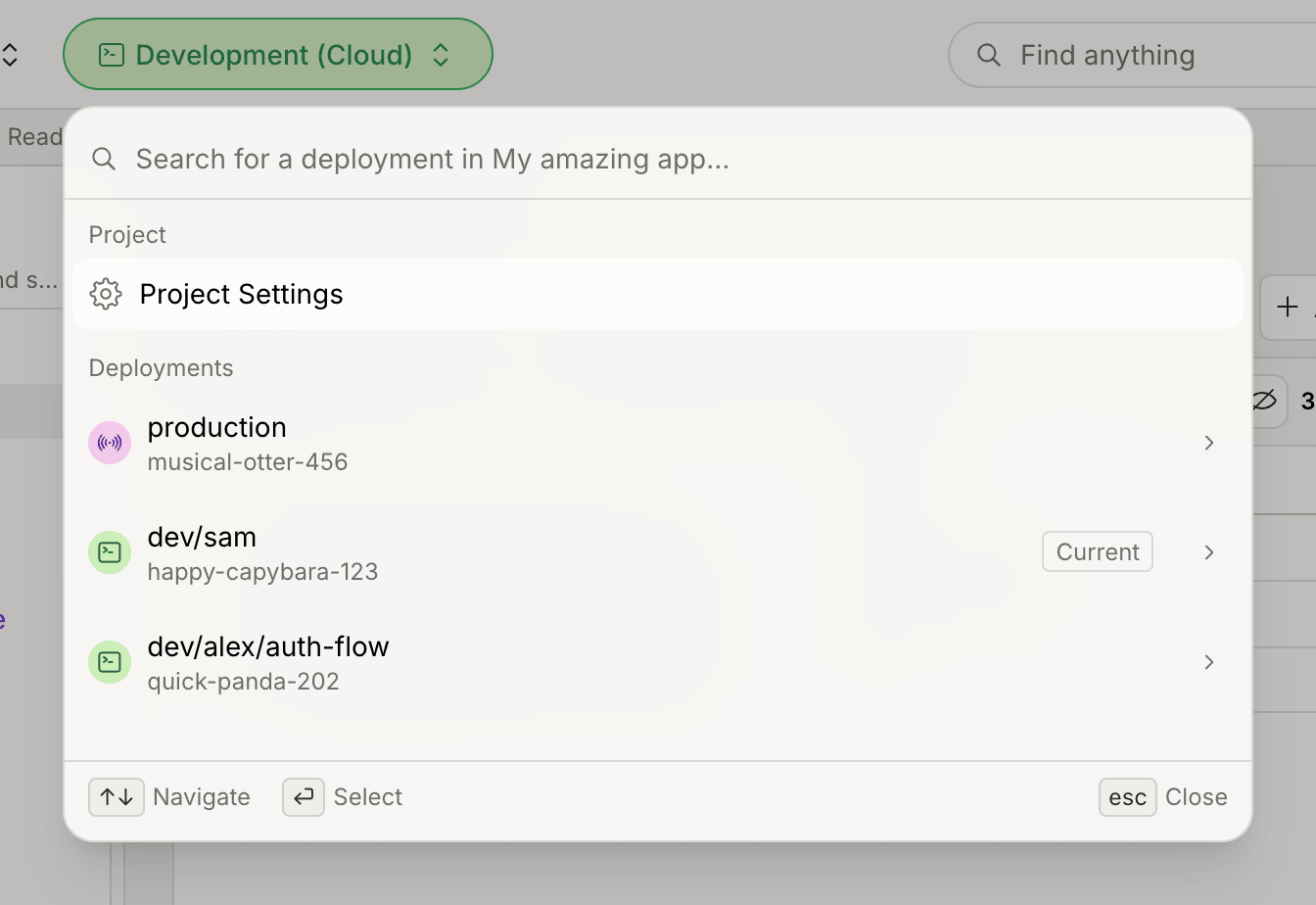
If you’re manually managing multiple dev deployments, you can usebijection deployment select to change the deployment used by bijection dev
and other commands:
--deployment:
Scoping a deploy key to a single deployment
If you want to hand a single deployment off to a coding agent or CI job, mint a deploy key scoped just to it and save it to.env.local as BIJECTION_DEPLOY_KEY:
bijection commands run against that
deployment only. See
Creating and deleting deploy keys from the CLI
for the full options.
Deployment types
There are three types of cloud deployments in Bijection:| Type | Dev | Preview | Production |
|---|---|---|---|
| Reference | dev/[creator] | preview/[branch] | production |
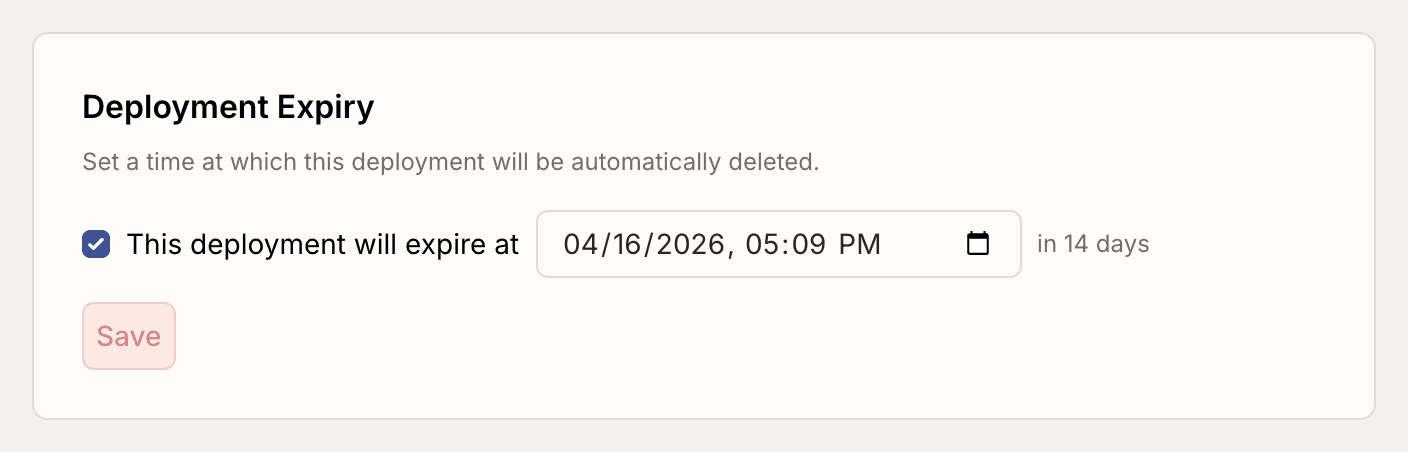
| Expiration | — | 5 or 14 days, depending on your team’s limits | — |
| Console permissions | Can be edited by every team member | Can only be edited by project or team admins | |
| Server logs in clients | Server logs are sent to the client | Server logs are not sent to the client | |
| Server errors | Details of server errors are sent to the client | Details of server errors are not sent to the client (unless
the error is wrapped inBijectionError) | |
| Console edit confirmation | No protection against accidental edits | Asks for confirmation before editing | |
Customize settingsThe table above shows the default settings for deployments in a type.
You can modify the settings of an individual deployment from the deployment’s
settings page in the console.
Limits
Every deployment you create counts towards the deployment limit of your team. You can set an expiration date when creating a deployment with--expiration.
Run bijection deployment create --help to learn more.
You can change the expiration time for an existing deployment in the console
deployment settings.