

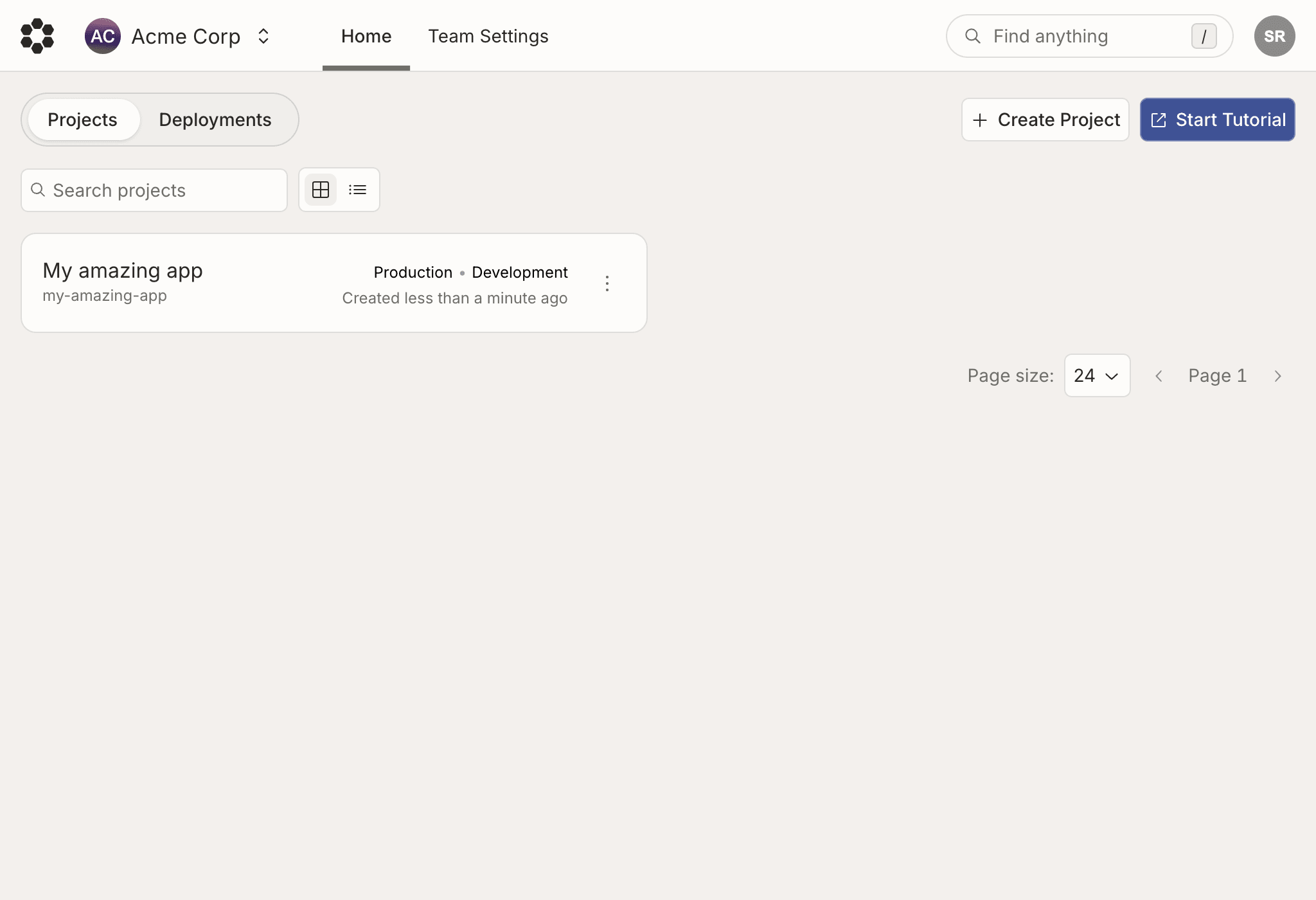
Creating a project
Projects can be created from the console or from the CLI withbijection dev. To create a project from the
console click on the Create Project button.
Switching projects
Once you’re inside a project, click the project name at the top of the console to switch to another project in the team. Typing filters the team’s projects, and the caret at the end of each row opens that project’s pages and deployments, so you can jump straight into one of them.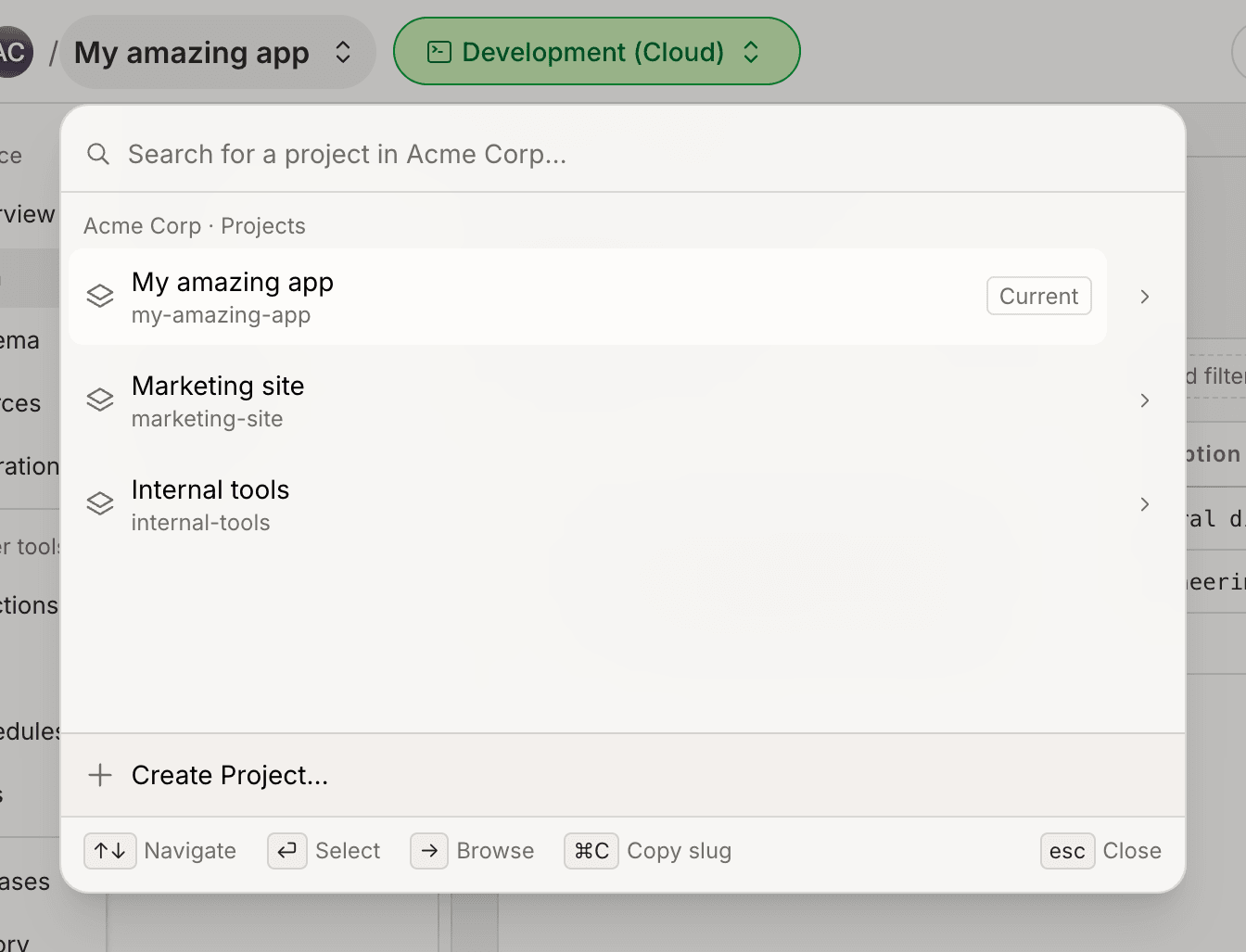
Project Settings
You can access project-level settings by clicking on the triple-dot⋮ button
on each Project card on the Projects page.
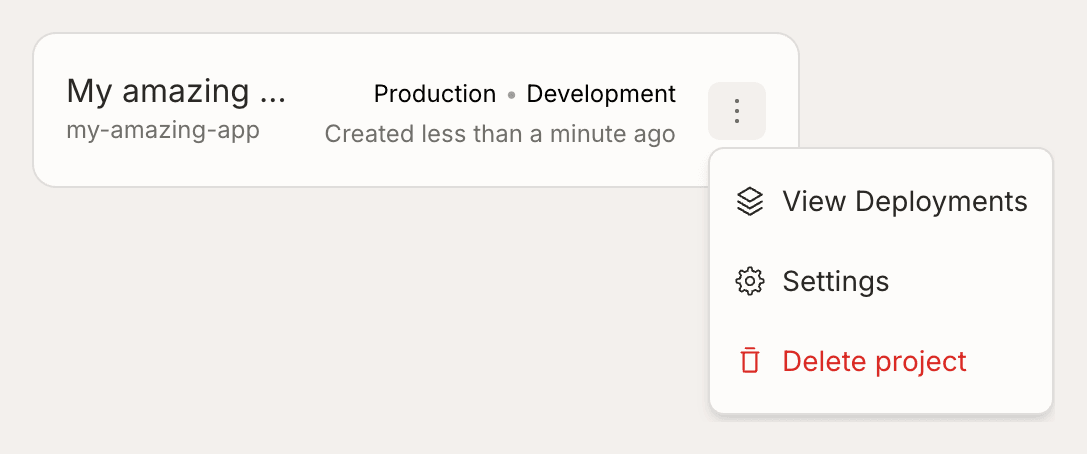
- Update your project’s name and slug.
- Manage the project’s Admins. See Roles and Permissions for more details.
- View the amount of usage metrics your project has consumed.
- Manage custom domains for your production deployment (in Deployment Settings).
- Generate deploy keys for your production deployment (in Deployment Settings) and preview deployments.
- Create and edit default environment variables.
- View instructions to regain access to your project, should you lose track of
your
BIJECTION_DEPLOYMENTconfig. - Permanently delete the project.
Transferring a project to another team
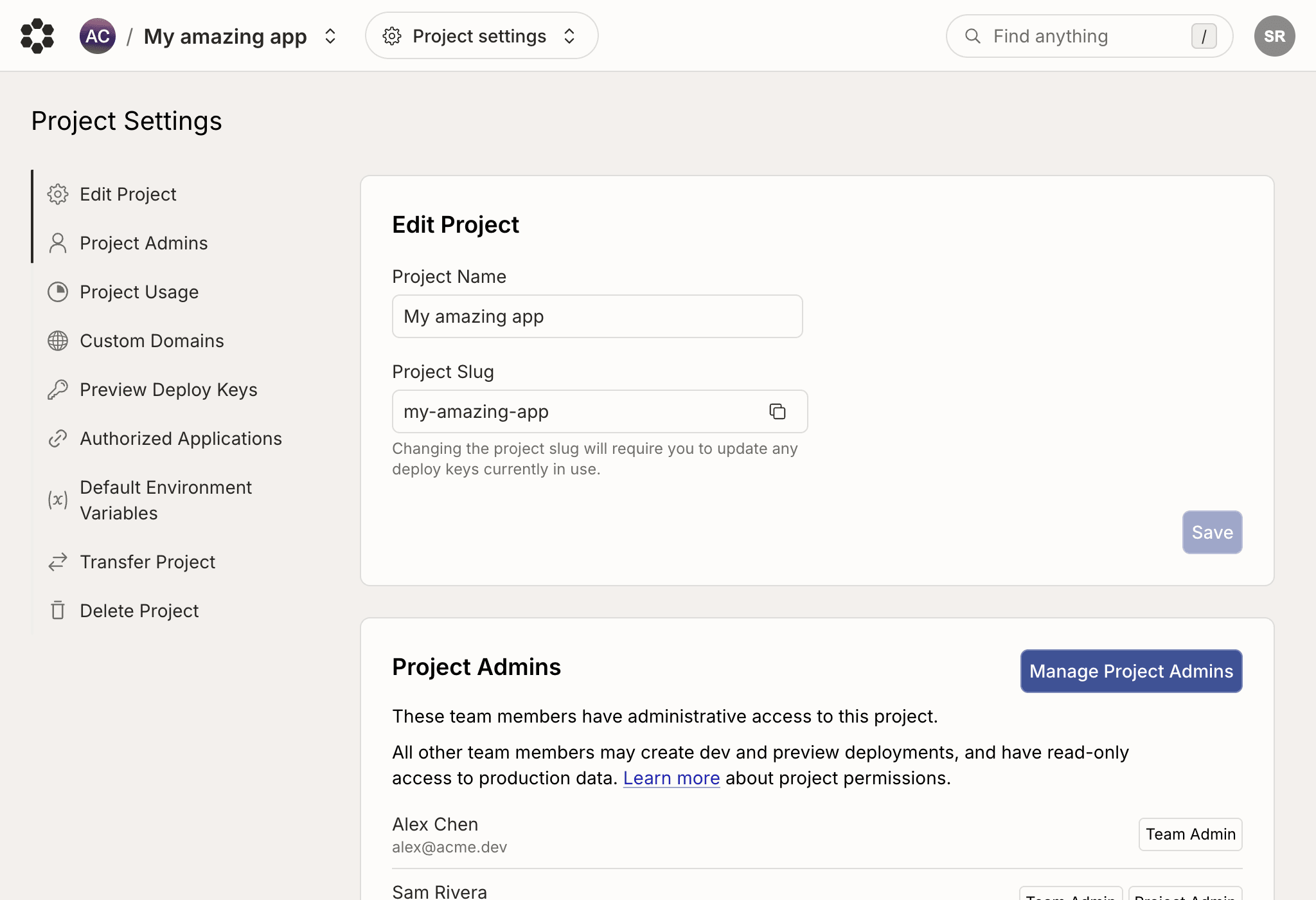
You can move a project to another team you’re a member of from the Project Settings page. The project keeps its slug, deployments, data, environment variables, and deploy keys — only its owning team changes. After the transfer, the project URL changes fromhttps://console.bijection.com/t/<old-team>/<project> to
https://console.bijection.com/t/<new-team>/<project>. Members of the source
team lose access to the project, unless they have permissions on the new team
allowing them to see the project.
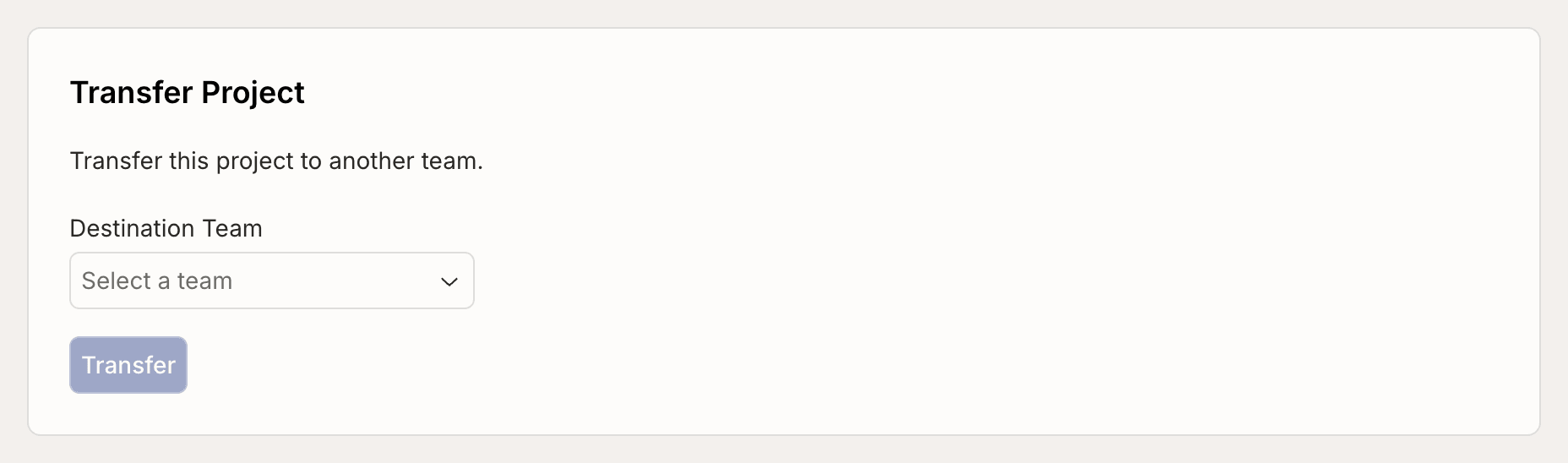
- You need to be an admin on the source team (or have the
project:transferpermission if using custom roles) - You also need to be an admin on the destination team (or have the
project:receivepermission if using custom roles).
Deleting a project
To delete a project, click on the triple-dot⋮ button on the Project card and
select “Delete”. You may also delete your project from the Project Settings
page.
Once a project is deleted, it cannot be recovered. All deployments and data
associated with the project will be permanently removed. When deleting a project
from the console, you will be asked to confirm the deletion. Projects with
activity in the production deployment will have additional confirmation steps to
prevent accidental deletion.