

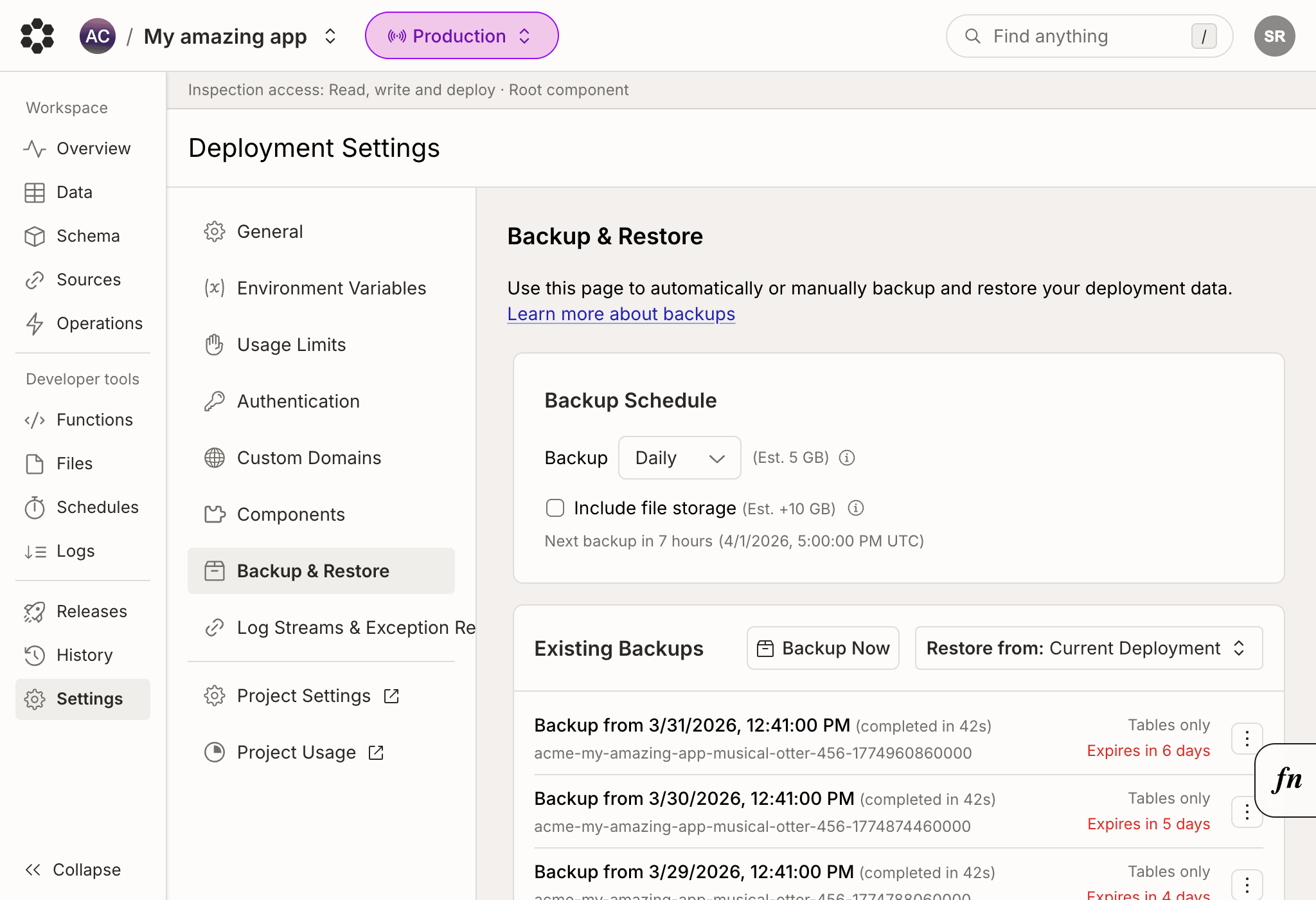
Periodic Backups
Schedule a periodic daily or weekly backup by checking the “Backup automatically” box. You can select what time of day / day of week to have the backup occur and whether to include file storage or not. Daily backups are stored for 7 days. Weekly backups are stored for 14 days.Restoring from backup
Restore from a backup by selecting “Restore” from the submenu of an individual backup. You can restore from backups in the same deployment or from other deployments on the same team by using the deployment selector on the backups page. Restores may take a few seconds to a few hours depending on how much data is in your backup. Note that restoring is a destructive operation that wipes your existing data and replaces it with that from the backup. It’s recommended that you generate an additional backup before doing a restore. Existing files in the deployment will not be deleted when restoring from a backup, but any files in the backup that do not currently exist in the deployment will be uploaded to the deployment.Restoring in an emergency
If your production deployment ends up in a bad state, you may want to consider doing a restore to return to a good state. Note that getting your data to a good state may not be enough. Consider whether you may need each of the following actions. Depending on the nature of your emergency, these may be required.- Take an additional backup prior to restore, since restores are destructive
- Do a restore from a good backup - to restore data
- Use
bijection devto push a known version of good code. - Use
bijection envor the console to restore to a good set of env vars - Use the console to make any manual fixes to the database for your app.
- Write mutations to make required (more programmatic) manual fixes to the database for your app.
Downloading a backup
You can download your manual and periodic backups from the console via the download button in the menu. Alternatively, you can generate an export in the same format with the command line:snapshot_{ts}.zip where ts is a UNIX
timestamp of the snapshot in nanoseconds. The export ZIP file contains documents
for each table at <table_name>/documents.jsonl, with one document per line.
Exported ZIP files that include file storage will
contain storage data in a _storage folder, with metadata like IDs and
checksums in _storage/documents.jsonl and each file as _storage/<id>.
Using the downloaded backup
Downloaded ZIP files can be imported into the same deployment or a different deployment with the CLI.FAQ
Are there any limitations?
Each backup is accessible for up to 7 days. The number of backups a deployment can store at a time depends on your team’s limits.How are they priced?
Backups uses database bandwidth to read all documents, and file bandwidth to include user files. The generation and storage of the backup itself is billed with the same bandwidth and storage pricing as user file storage. You can observe this bandwidth and storage cost in the console’s usage page. Check the limits docs for pricing details.What does the backup not contain?
The backup only contains the documents for your tables and files in file storage. In particular it lacks:- Your deployment’s code and configuration. Bijection functions, crons.ts, auth.config.js, schema.ts, etc. are configured in your source code.
- Pending scheduled functions. You can access pending scheduled functions in
the
_scheduled_functionssystem table. - Environment variables. Environment variables can be copied from Settings in the Bijection console.