> ## Documentation Index
> Fetch the complete documentation index at: https://docs.bijection.com/llms.txt
> Use this file to discover all available pages before exploring further.
# Single Sign-On (SSO)
> Set up and manage Single Sign-On (SSO) for your Bijection team
Single Sign-On is only available on Bijection Business and Enterprise.
Single Sign-On (SSO) allows your team to authenticate with Bijection using your
organization's identity provider (IdP). Once configured, team members can sign
in to Bijection through your IdP instead of using individual credentials.
## Finding the settings
SSO is configured on the
[Team Authentication page](https://console.bijection.com),
under **Team Settings → Team Authentication**.
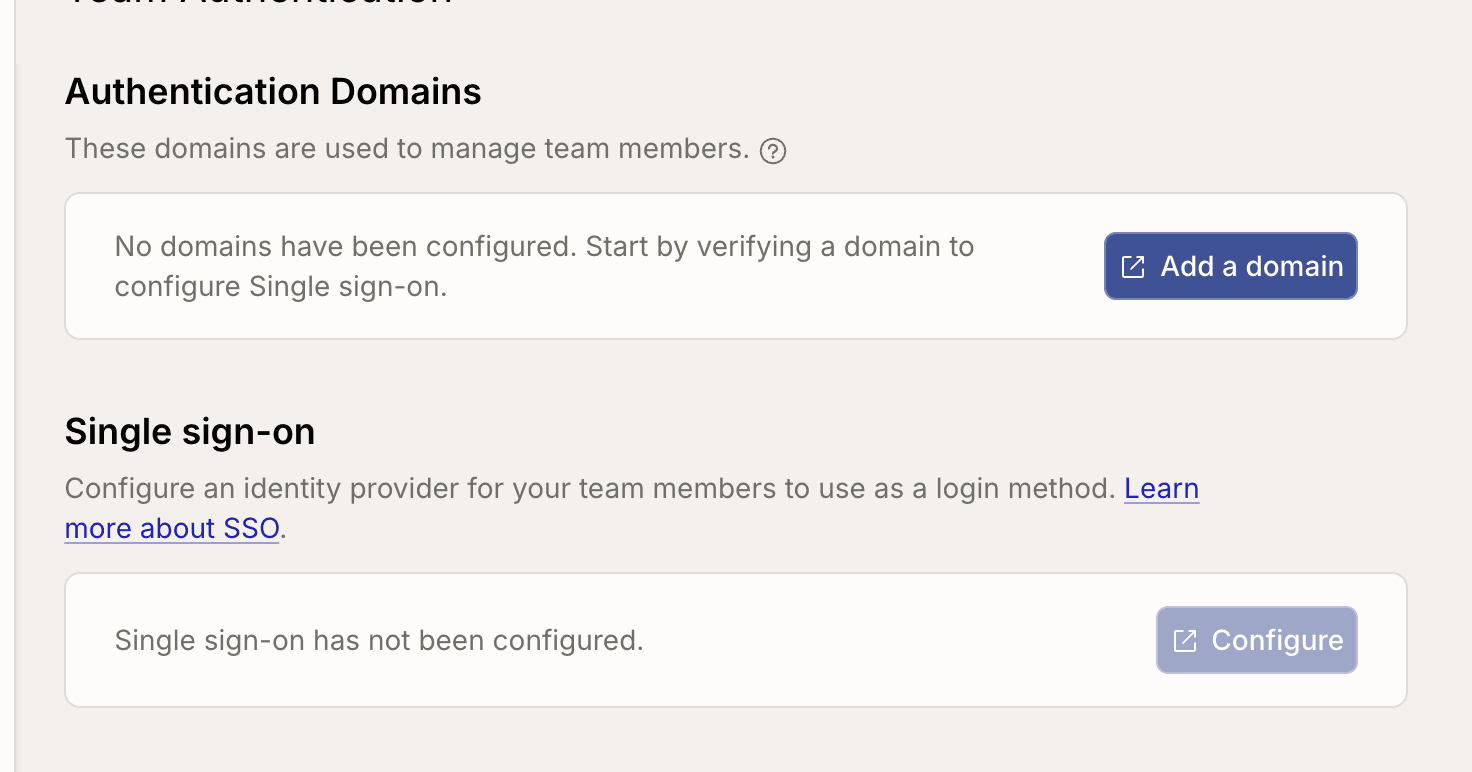
Two of its sections cover SSO:
* **Authentication Domains** — the email domains your team owns. SSO only
manages members whose account uses one of these domains.
* **Single sign-on** — your identity provider connection.
 ## Setting up SSO
### 1. Verify a domain
Each connection is attached to a domain you own, so start by verifying yours.
Select **Add a domain** in the **Authentication Domains** section. Bijection opens
a separate configuration page in a new tab, where you enter the domain and
complete the DNS verification.
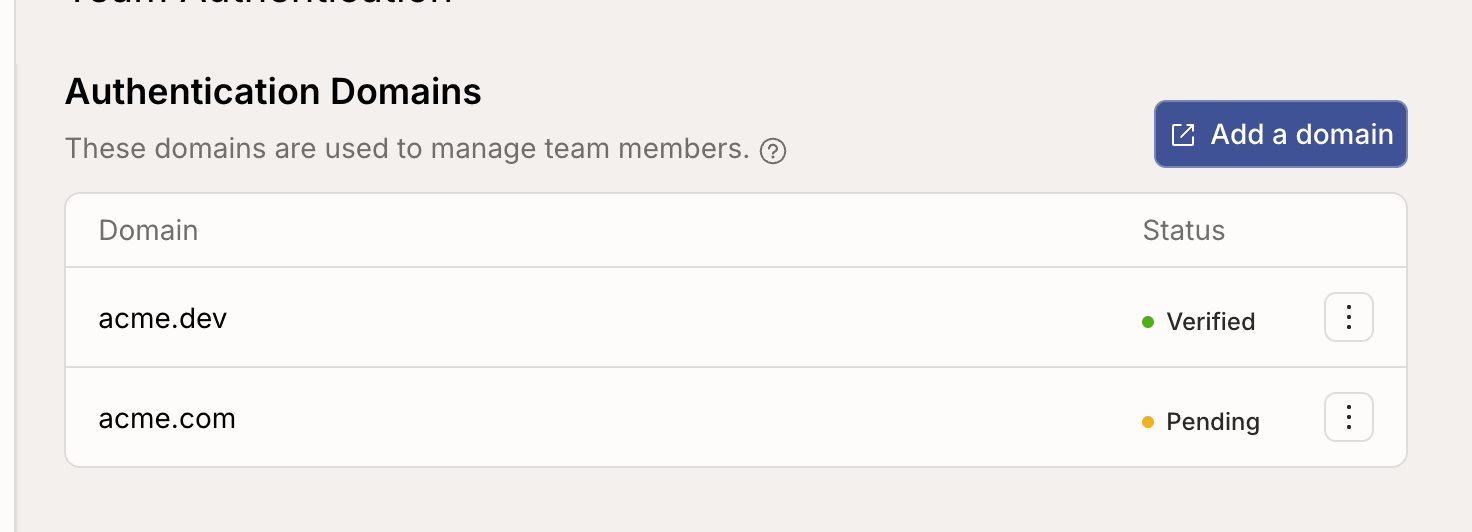
Verification is not instant. A domain shows as **Pending** until your DNS record
is picked up, and **Verified** once it is. You can re-open **Add a domain** at
any time to check on a pending domain.
## Setting up SSO
### 1. Verify a domain
Each connection is attached to a domain you own, so start by verifying yours.
Select **Add a domain** in the **Authentication Domains** section. Bijection opens
a separate configuration page in a new tab, where you enter the domain and
complete the DNS verification.
Verification is not instant. A domain shows as **Pending** until your DNS record
is picked up, and **Verified** once it is. You can re-open **Add a domain** at
any time to check on a pending domain.
 Your own Bijection account needs a
[verified email](https://console.bijection.com) on one of these domains,
otherwise you won't be able to log in through SSO yourself. When none of your
verified emails match, the section shows a warning next to its title.
### 2. Connect your identity provider
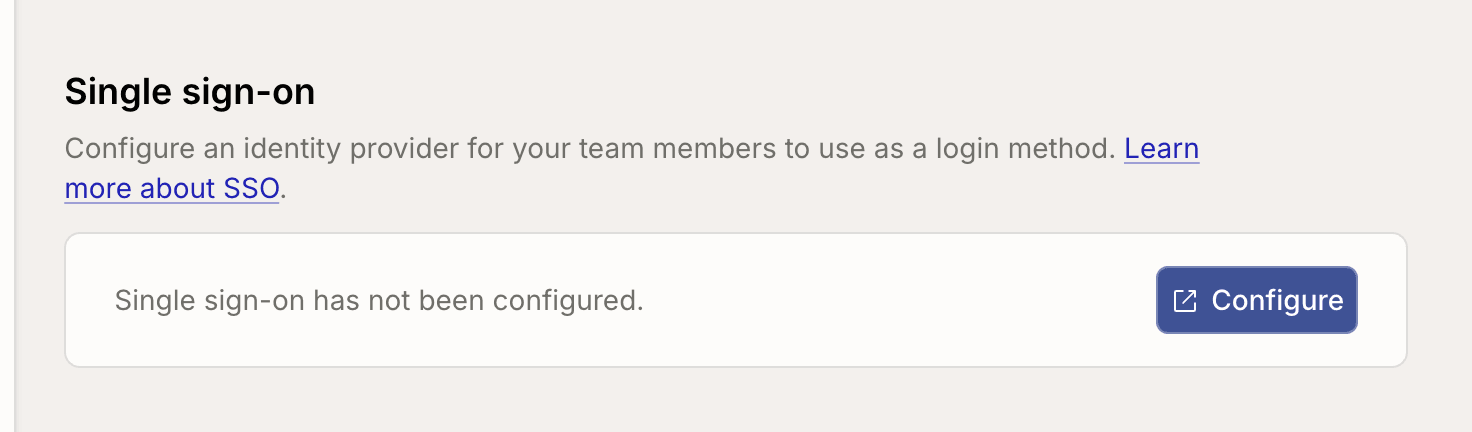
Once a domain is verified, select **Configure** in the **Single sign-on**
section. Bijection opens a separate configuration page in a new tab, where you pick
your identity provider and follow its setup instructions.
Your own Bijection account needs a
[verified email](https://console.bijection.com) on one of these domains,
otherwise you won't be able to log in through SSO yourself. When none of your
verified emails match, the section shows a warning next to its title.
### 2. Connect your identity provider
Once a domain is verified, select **Configure** in the **Single sign-on**
section. Bijection opens a separate configuration page in a new tab, where you pick
your identity provider and follow its setup instructions.
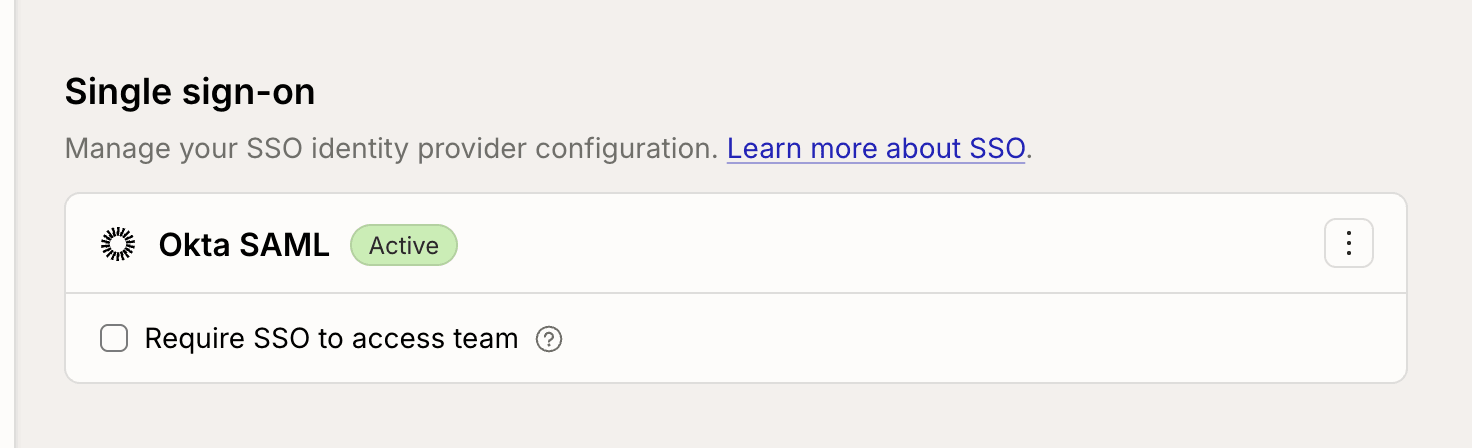
 When you come back, the connection appears in the section with its status:
* **Active** — team members can log in through this identity provider.
* **Inactive** — the connection exists but isn't finished. Re-open it with **⋮ →
Manage** to complete the remaining steps with your identity provider.
When you come back, the connection appears in the section with its status:
* **Active** — team members can log in through this identity provider.
* **Inactive** — the connection exists but isn't finished. Re-open it with **⋮ →
Manage** to complete the remaining steps with your identity provider.
 ### 3. Test the connection
Log out and log back in through your identity provider to confirm the connection
works before requiring SSO for the whole team.
## Managing the connection
Use the **⋮** menu next to the connection to manage it:
### 3. Test the connection
Log out and log back in through your identity provider to confirm the connection
works before requiring SSO for the whole team.
## Managing the connection
Use the **⋮** menu next to the connection to manage it:
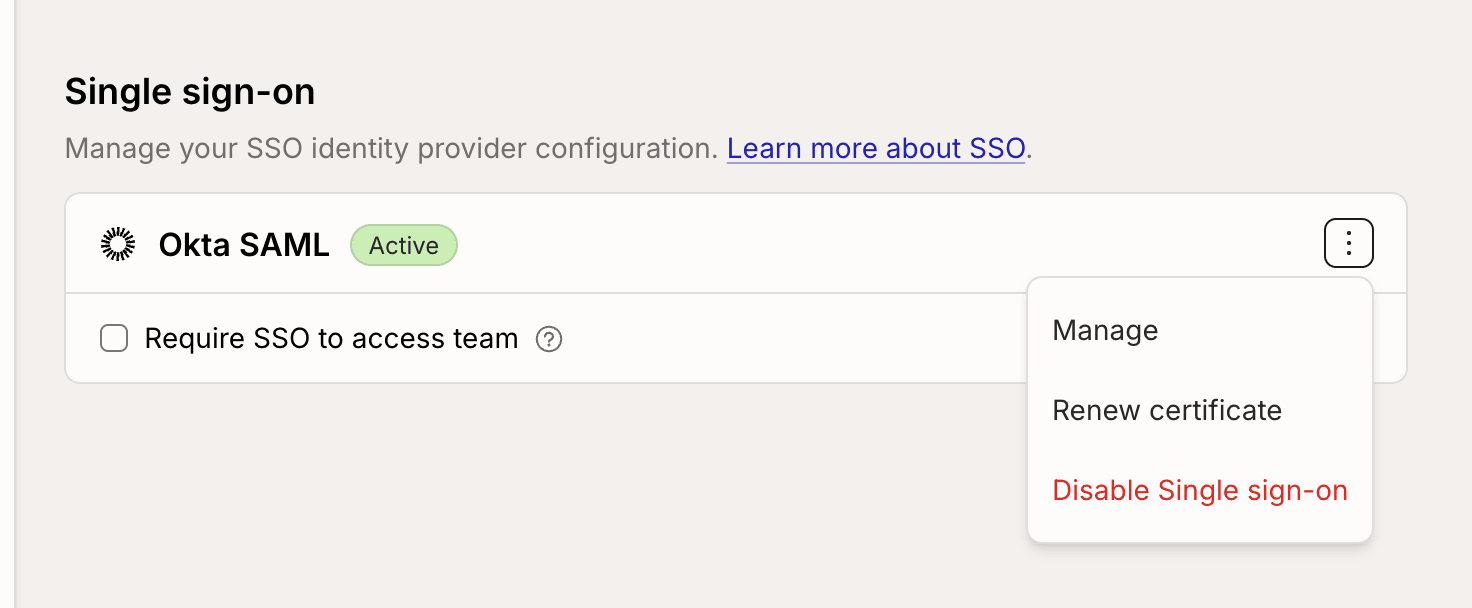 * **⋮ → Manage** re-opens the configuration page for this connection.
* **⋮ → Renew certificate** walks you through replacing a signing certificate
before it expires.
* **⋮ → Disable Single sign-on** removes the connection. Team members can no
longer log in through your identity provider. Your verified domains are
unaffected.
## Require Single Sign-On
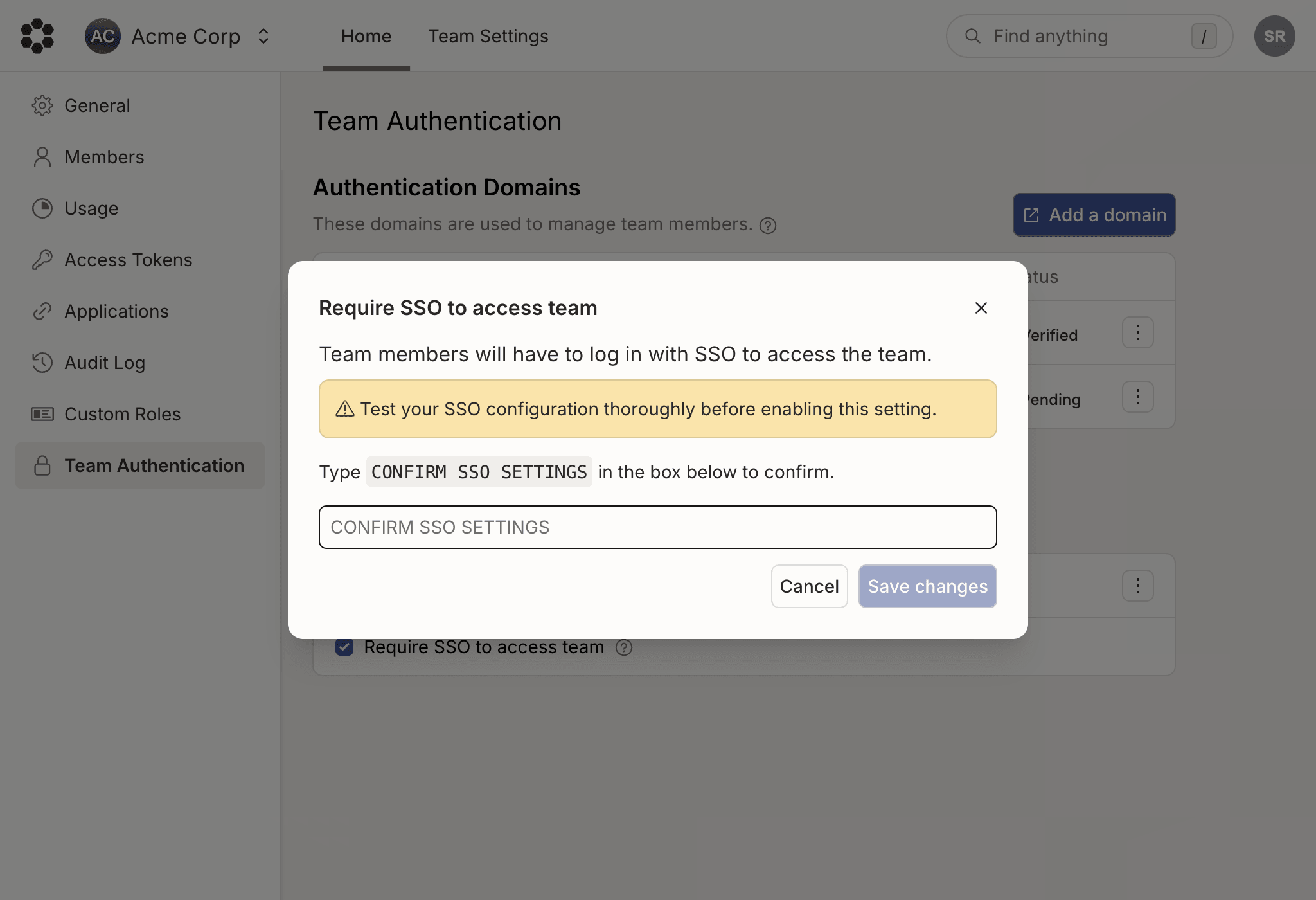
Once a connection is active, you can **require** SSO for the team by checking
**Require SSO to access team**. The console asks you to confirm before saving.
* **⋮ → Manage** re-opens the configuration page for this connection.
* **⋮ → Renew certificate** walks you through replacing a signing certificate
before it expires.
* **⋮ → Disable Single sign-on** removes the connection. Team members can no
longer log in through your identity provider. Your verified domains are
unaffected.
## Require Single Sign-On
Once a connection is active, you can **require** SSO for the team by checking
**Require SSO to access team**. The console asks you to confirm before saving.
 When this setting is on:
* All team members must authenticate through your identity provider to access
this team. This applies to both the console and the CLI.
* Members cannot use other authentication methods to access the team.
This only applies to the team that has SSO enabled. Members can still use other
login methods to access any other Bijection teams they belong to.
Test your SSO configuration before turning this on. If the connection doesn't
work, nobody can access the team, including you.
## Customizing your domain policy
By default, all Bijection users that sign in with your verified SSO domain will be
required to log in with SSO to use Bijection if they are signing in with an email
address that uses your verified domain.
To configure a custom domain policy, such as allowing users to login with other
sign-on methods, contact Bijection support.
These settings will be available for self-serve configuration in the future.
## Who can configure SSO
Team Admins can do everything on this page. Team Developers can see the
configuration but not change it. With
[custom roles](/team-management/custom-roles) you can grant the individual
[role actions](/team-management/role-actions#sso): `sso:view`, `sso:enable`,
`sso:update`, `sso:disable`, and the `team:domain:*` actions that cover the
**Authentication Domains** section.
When this setting is on:
* All team members must authenticate through your identity provider to access
this team. This applies to both the console and the CLI.
* Members cannot use other authentication methods to access the team.
This only applies to the team that has SSO enabled. Members can still use other
login methods to access any other Bijection teams they belong to.
Test your SSO configuration before turning this on. If the connection doesn't
work, nobody can access the team, including you.
## Customizing your domain policy
By default, all Bijection users that sign in with your verified SSO domain will be
required to log in with SSO to use Bijection if they are signing in with an email
address that uses your verified domain.
To configure a custom domain policy, such as allowing users to login with other
sign-on methods, contact Bijection support.
These settings will be available for self-serve configuration in the future.
## Who can configure SSO
Team Admins can do everything on this page. Team Developers can see the
configuration but not change it. With
[custom roles](/team-management/custom-roles) you can grant the individual
[role actions](/team-management/role-actions#sso): `sso:view`, `sso:enable`,
`sso:update`, `sso:disable`, and the `team:domain:*` actions that cover the
**Authentication Domains** section.