> ## Documentation Index
> Fetch the complete documentation index at: https://docs.bijection.com/llms.txt
> Use this file to discover all available pages before exploring further.
# Directory Sync (SCIM)
> Provision team members and their roles from your identity provider's user directory.
**Directory Sync is in beta**
Directory Sync is a [beta feature](/production/state/state#beta-features) available
on the Bijection Business and Enterprise plans. To have it turned on for your team,
contact Bijection support.
Directory Sync connects your identity provider's user directory to your Bijection
team, so that your directory controls who belongs to the team and what team role
they have.
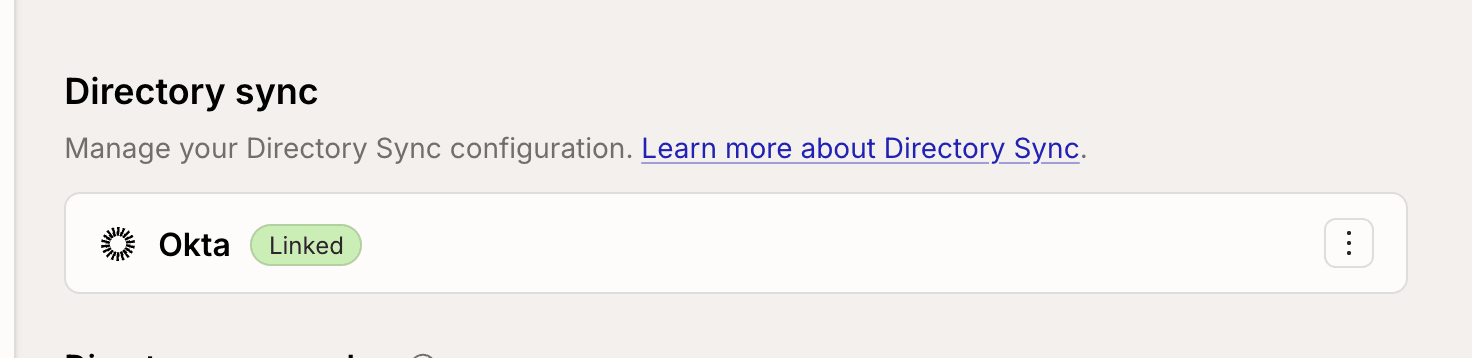
Directory Sync is configured on the
[Team Authentication page](https://console.bijection.com),
under **Team Settings → Team Authentication**.
Directory Sync and [SSO](/team-management/sso) are separate features, and
you can use either one without the other. Both use the **Authentication
Domains** section of the page.
## Setting up Directory Sync
### 1. Verify a domain
Directory Sync only manages members whose Bijection account uses an email on a
domain your team has verified, so verify a domain first if you have not already.
See [verifying a domain](/team-management/sso#1-verify-a-domain).
### 2. Connect your directory
Select **Configure** in the **Directory sync** section.
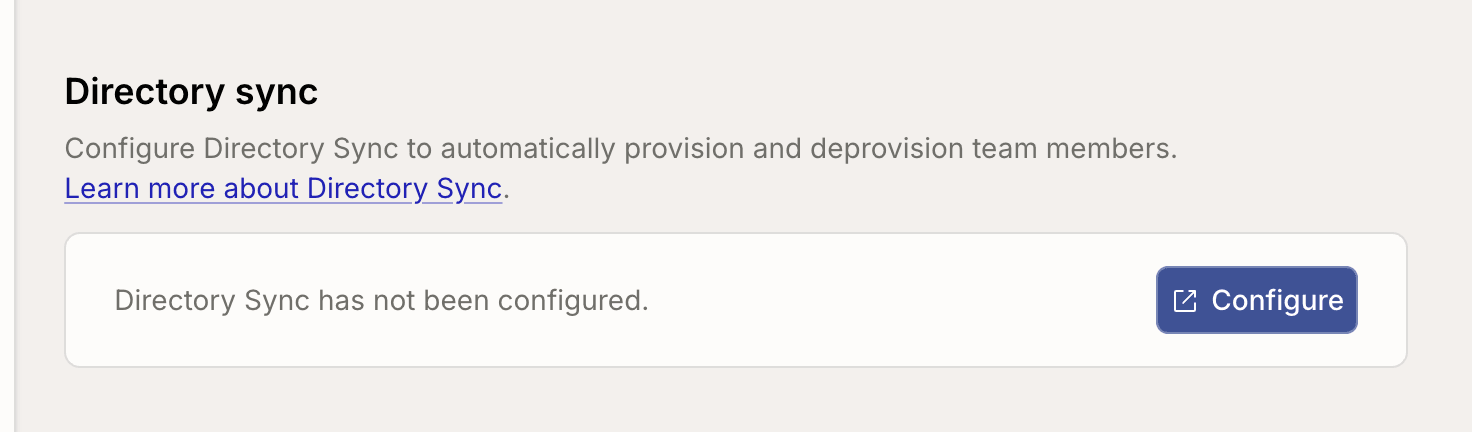 The console describes what connecting a directory does, then opens a separate
configuration page in a new tab. That page is where the connection is set up:
you pick your identity provider, follow its instructions to point the directory
at Bijection, and select which directory groups to sync. Complete every step there
before coming back to the Bijection console, because the directory is not
connected until they are all done.
Back in the Bijection console, the dialog shows the connection's progress while
you work through that page, and updates once the directory is linked. You can
close it and come back later without losing your progress.
### 3. Wait for the initial sync
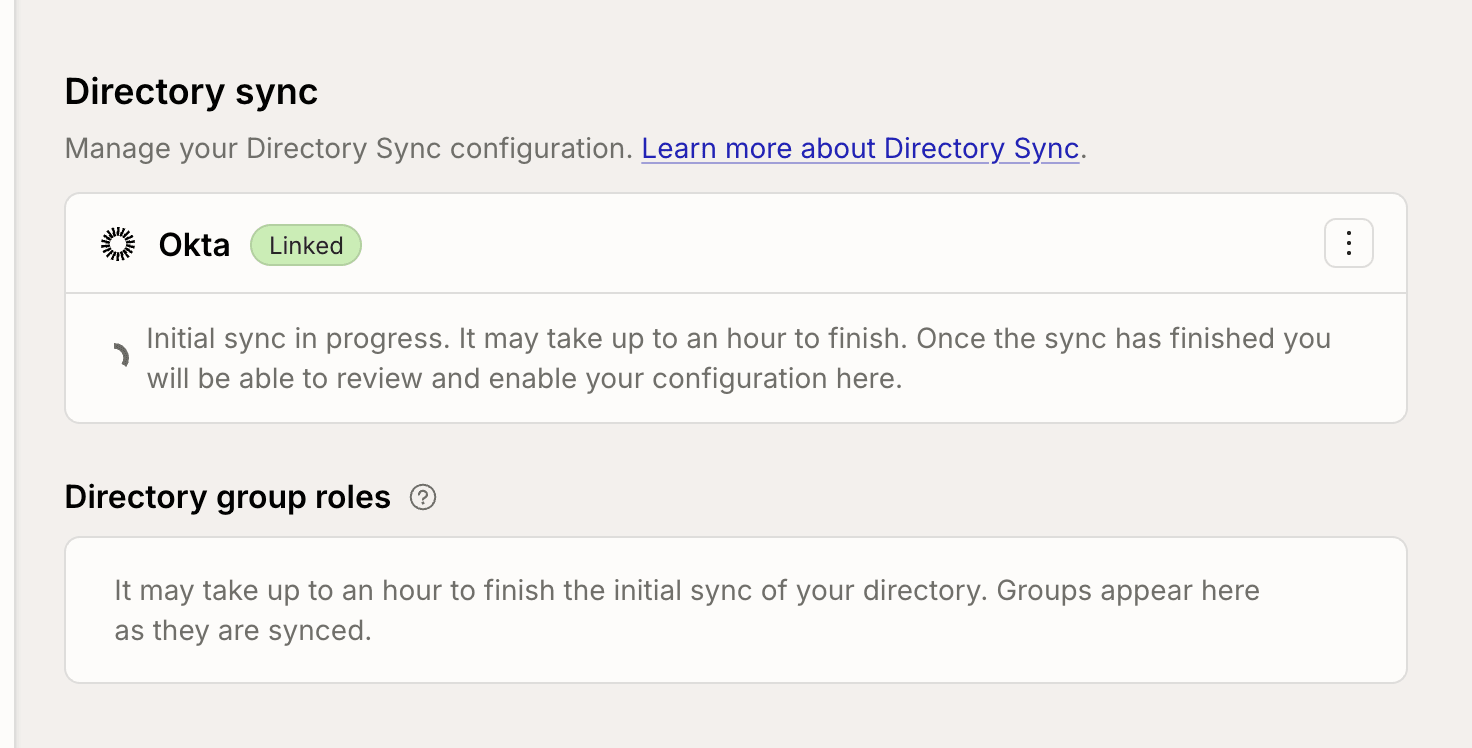
After the connection is made, your identity provider sends over its users and
the groups you selected to sync. Syncing those groups usually takes a few
minutes, and can take up to an hour, as directory updates are processed on a
schedule. Groups appear in **Directory group roles** as they arrive.
The console describes what connecting a directory does, then opens a separate
configuration page in a new tab. That page is where the connection is set up:
you pick your identity provider, follow its instructions to point the directory
at Bijection, and select which directory groups to sync. Complete every step there
before coming back to the Bijection console, because the directory is not
connected until they are all done.
Back in the Bijection console, the dialog shows the connection's progress while
you work through that page, and updates once the directory is linked. You can
close it and come back later without losing your progress.
### 3. Wait for the initial sync
After the connection is made, your identity provider sends over its users and
the groups you selected to sync. Syncing those groups usually takes a few
minutes, and can take up to an hour, as directory updates are processed on a
schedule. Groups appear in **Directory group roles** as they arrive.
 ### 4. Map directory groups to roles
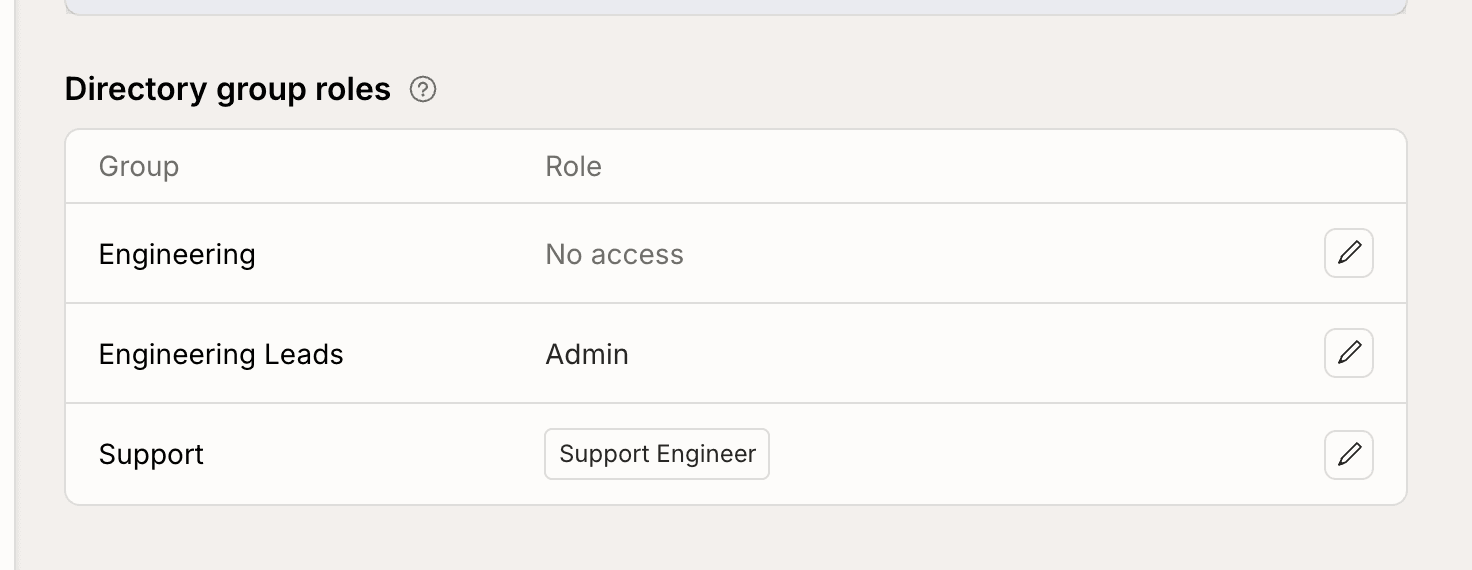
Each group in your directory maps to a Bijection team role. Use the edit button
next to a group to change the role its members get.
### 4. Map directory groups to roles
Each group in your directory maps to a Bijection team role. Use the edit button
next to a group to change the role its members get.
 A group can map to:
* **Admin**, which grants full access to the team.
* **Developer**.
* One or more [custom roles](/team-management/custom-roles).
* **No access**, which is the default for any group you have not mapped. A
directory user who is in no group, or only in groups you have not mapped, has
no access to the Bijection team.
Users often belong to more than one group. When they do, Bijection picks their role
in this order:
1. **Admin**, if any of their groups maps to Admin.
2. Otherwise, all of the custom roles granted by their groups, if any group
grants one.
3. Otherwise, **Developer**, if any of their groups maps to Developer.
4. Otherwise, **no access**.
The group name `bijection-team-admins` is reserved. It always maps to Admin, and
you cannot edit its mapping. See
[Emergency lockout recovery](#emergency-lockout-recovery).
### 5. Review the changes and enable
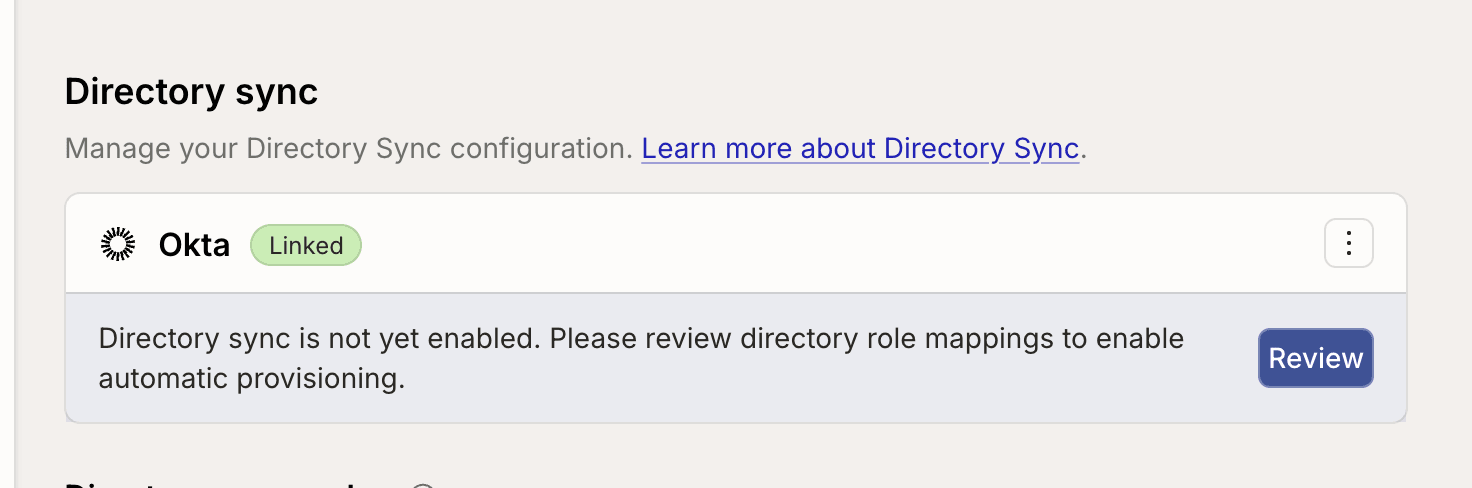
Directory Sync does not manage anyone until you turn it on. Select **Review** on
the Directory Sync section to see what enabling it would change.
A group can map to:
* **Admin**, which grants full access to the team.
* **Developer**.
* One or more [custom roles](/team-management/custom-roles).
* **No access**, which is the default for any group you have not mapped. A
directory user who is in no group, or only in groups you have not mapped, has
no access to the Bijection team.
Users often belong to more than one group. When they do, Bijection picks their role
in this order:
1. **Admin**, if any of their groups maps to Admin.
2. Otherwise, all of the custom roles granted by their groups, if any group
grants one.
3. Otherwise, **Developer**, if any of their groups maps to Developer.
4. Otherwise, **no access**.
The group name `bijection-team-admins` is reserved. It always maps to Admin, and
you cannot edit its mapping. See
[Emergency lockout recovery](#emergency-lockout-recovery).
### 5. Review the changes and enable
Directory Sync does not manage anyone until you turn it on. Select **Review** on
the Directory Sync section to see what enabling it would change.
 This dialog lists every current team member and every user in the directory,
with the role each one has today and the role the directory would give them:
This dialog lists every current team member and every user in the directory,
with the role each one has today and the role the directory would give them:
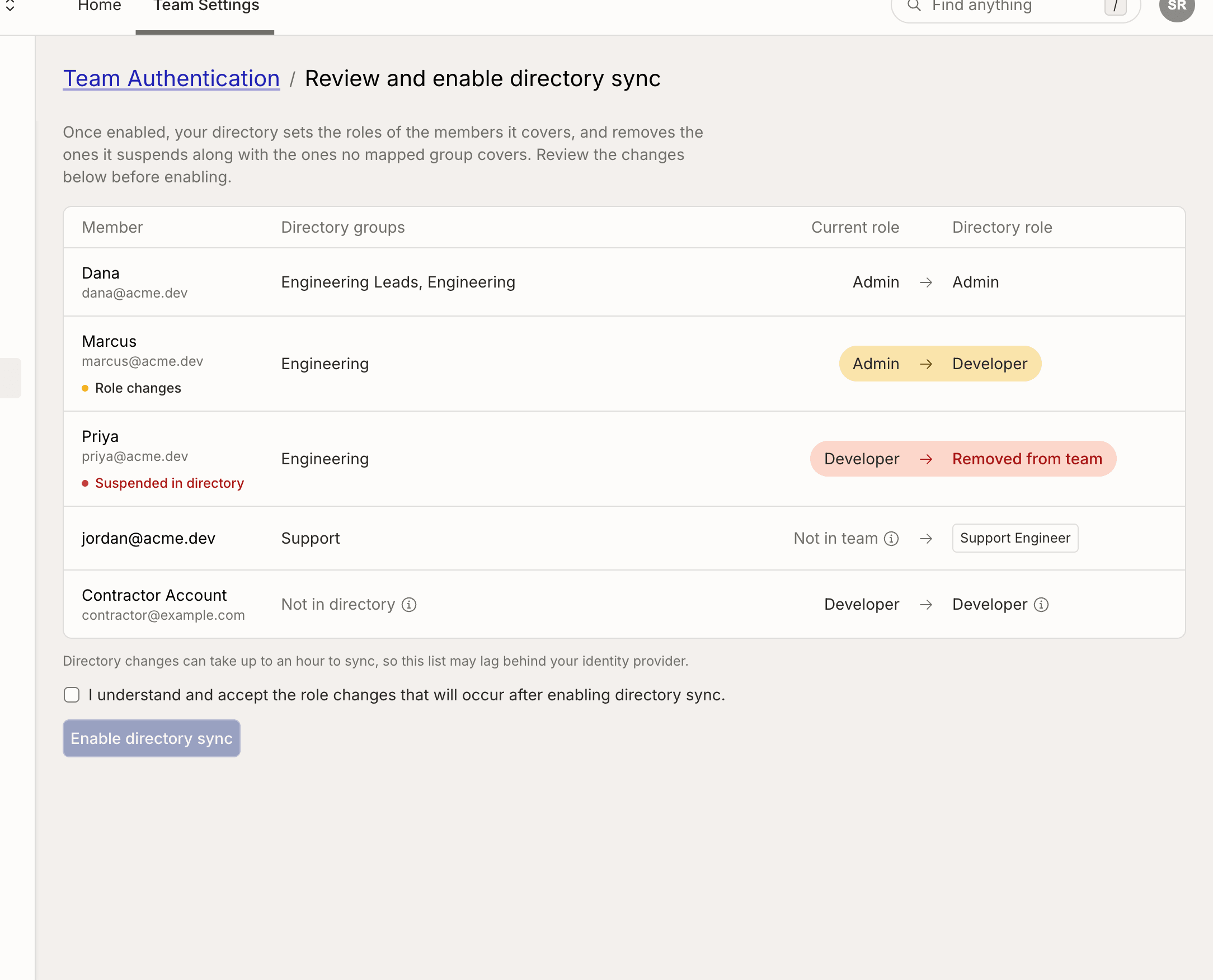 * Members who are in the directory take the role their groups grant, which may
differ from the role they have today.
* Members who are not in the directory are marked **Not in directory**. They
keep their access and their role until you remove them from the team or add
them to the directory.
* Directory users who are not on the team yet are marked **Not in team**. Once
Directory Sync is enabled, they may choose to join the team by selecting the
team invitation from the team switcher in the Bijection console.
* Users who are not active in your directory are marked **Suspended in
directory**. If such a user is a team member, they are removed from the team.
If they are not a member, they are not offered the team.
* Users who are in no mapped group are marked **Directory does not grant
access**, and are treated the same way.
Check the acknowledgement and select **Enable directory sync**. The prompt to
review goes away, and the directory starts managing the members it covers.
* Members who are in the directory take the role their groups grant, which may
differ from the role they have today.
* Members who are not in the directory are marked **Not in directory**. They
keep their access and their role until you remove them from the team or add
them to the directory.
* Directory users who are not on the team yet are marked **Not in team**. Once
Directory Sync is enabled, they may choose to join the team by selecting the
team invitation from the team switcher in the Bijection console.
* Users who are not active in your directory are marked **Suspended in
directory**. If such a user is a team member, they are removed from the team.
If they are not a member, they are not offered the team.
* Users who are in no mapped group are marked **Directory does not grant
access**, and are treated the same way.
Check the acknowledgement and select **Enable directory sync**. The prompt to
review goes away, and the directory starts managing the members it covers.
 ## How members join
Directory Sync offers the team to people instead of adding them to it. A
directory user is offered your team once they have a Bijection account with a
**verified email** that matches their directory entry, on one of your verified
domains.
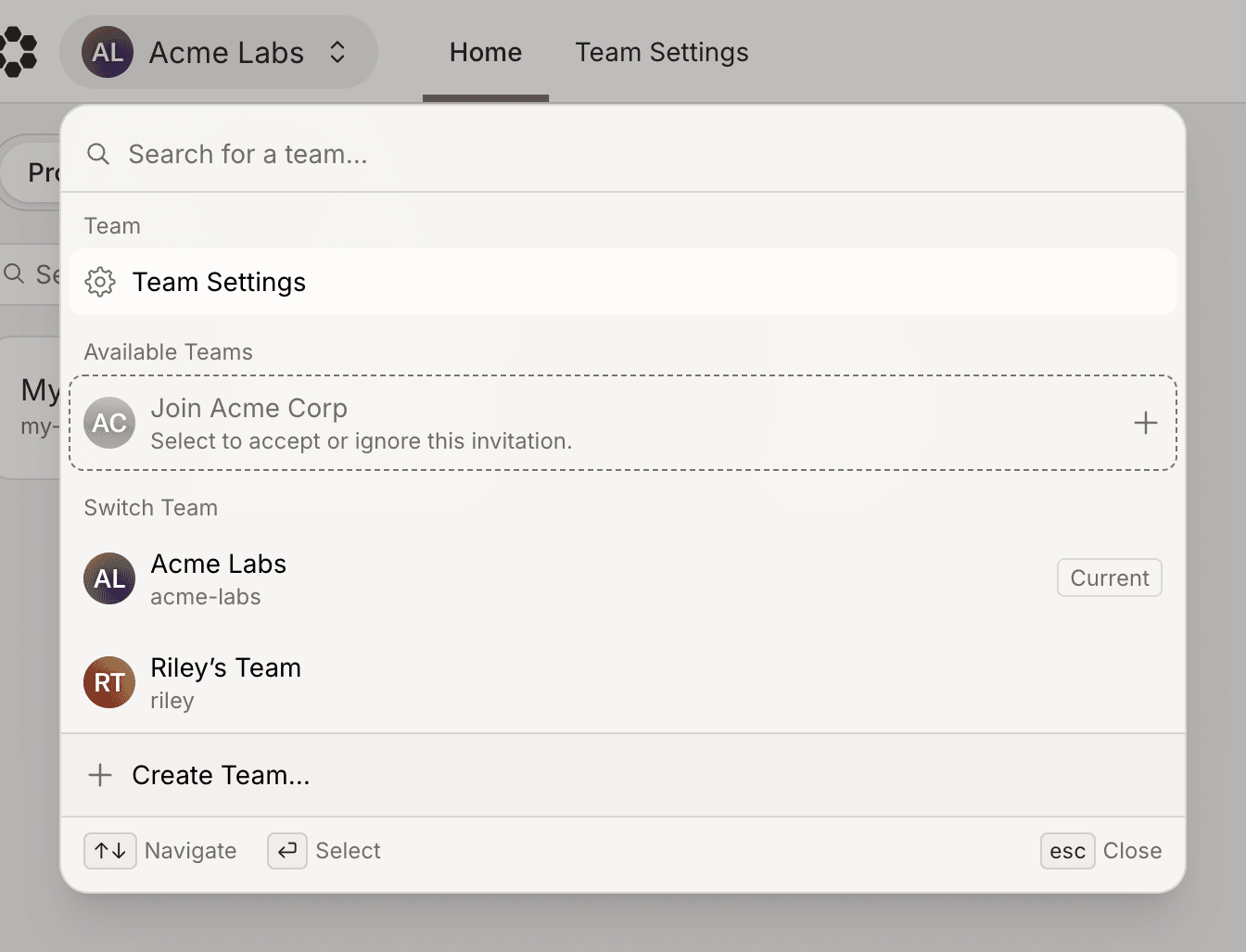
The team shows up as an invitation in their team switcher, which they select to
accept it:
## How members join
Directory Sync offers the team to people instead of adding them to it. A
directory user is offered your team once they have a Bijection account with a
**verified email** that matches their directory entry, on one of your verified
domains.
The team shows up as an invitation in their team switcher, which they select to
accept it:
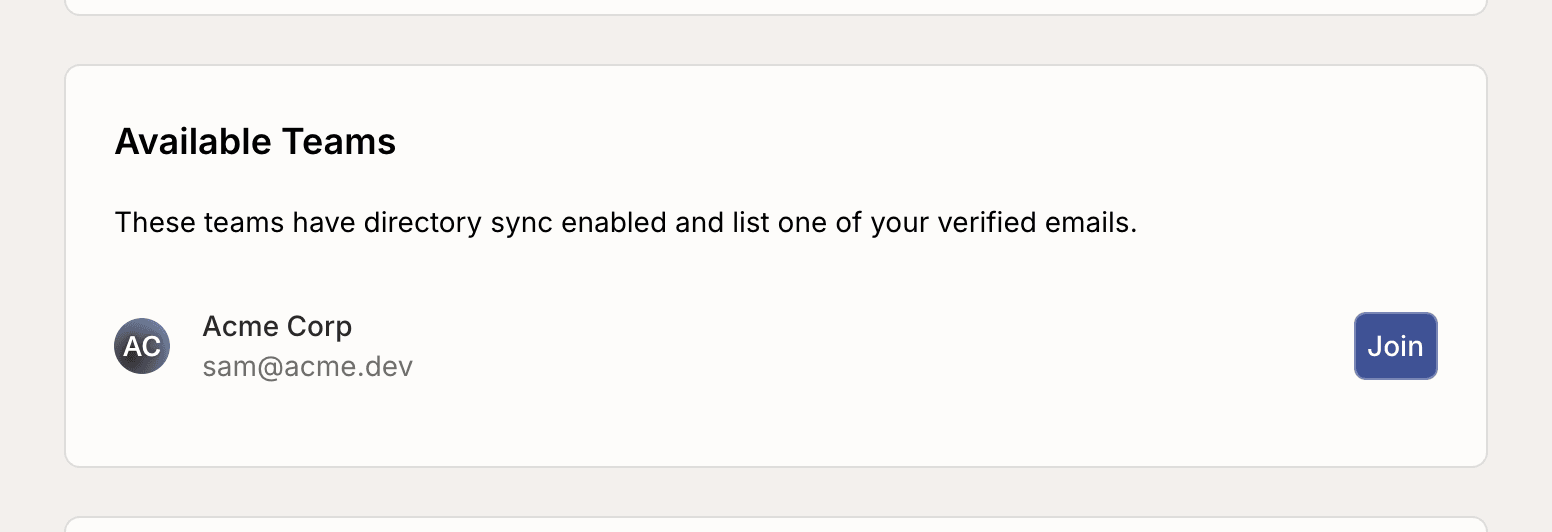
 The team is also listed under **Available Teams** on their
[profile page](https://console.bijection.com), even if they dismiss the
invitation in the switcher:
The team is also listed under **Available Teams** on their
[profile page](https://console.bijection.com), even if they dismiss the
invitation in the switcher:
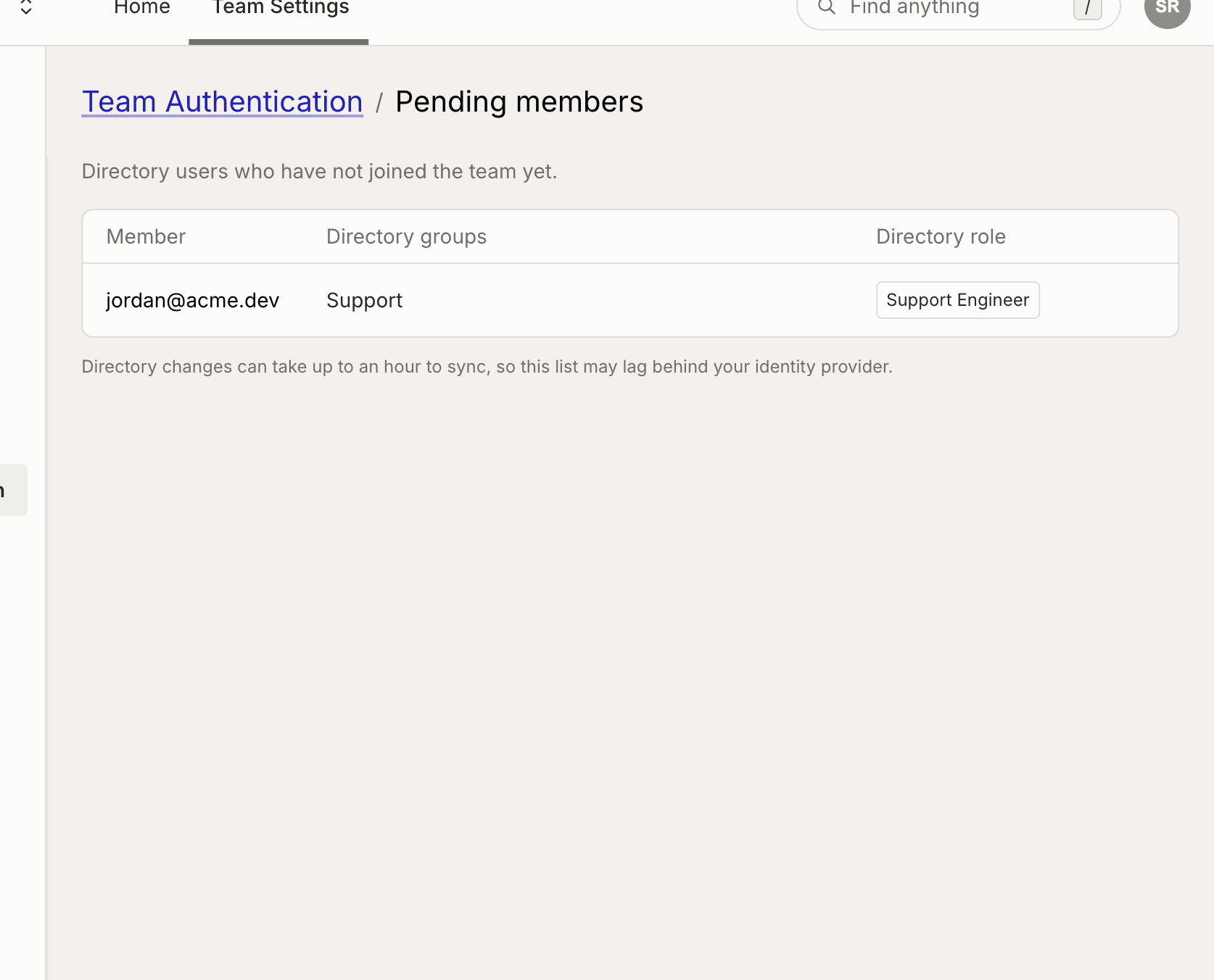
 To see who has been offered the team but has not joined, use **⋮ → View pending
members**.
To see who has been offered the team but has not joined, use **⋮ → View pending
members**.
 ## Keeping the team in sync
Once Directory Sync is enabled, changes in your identity provider are applied to
Bijection automatically:
* Adding a user to the directory offers them the team, once one of their groups
is mapped to a role.
* Moving a user between groups changes their Bijection role, and removes them from
the team once they are in no mapped group.
* Changing a group's mapping updates the role of everyone in that group.
* Suspending a user in the directory, or removing them from it, removes them
from the Bijection team. See
[Deprovisioning removes members](#deprovisioning-removes-members) for what
that means for them.
Directory updates are processed on a schedule, so changes can take up to an hour
to arrive and your Bijection team can lag behind your identity provider.
Your directory also takes over the parts of the members page it covers:
* The team stops accepting manual invitations. Add the person to your directory
instead. Invitations sent before the directory was connected can no longer be
accepted either.
* You cannot change the role of a member the directory manages, or remove them
from the team, from the Bijection console. Move them between groups, or take
them out of the directory, in your identity provider instead.
* Members the directory does not cover are unaffected, and anyone can still
remove themselves from the team.
To manage the directory connection, view the current status of the directory, or
request a manual sync, use the **⋮ → Manage** button.
## Disabling Directory Sync
Select **⋮ → Disable Directory Sync** to disconnect the directory. Members your
identity provider provisioned keep their team membership and the role they have
at that moment.
The team stops being managed by the directory right away, but the directory
itself can take up to an hour to disappear from this page while Bijection finishes
tearing the connection down.
Deleting a verified domain has the same effect for the members on that domain:
the directory can no longer manage them.
## Emergency lockout recovery
If every directory group maps to a non-admin role, if your admins end up in
groups that do not grant Admin or in no mapped group at all, or if the directory
has no users left, the team can be left without an admin and without anyone who
can map one back. The reserved group name `bijection-team-admins` exists for this
case:
1. In your identity provider, create a directory group named
`bijection-team-admins` (the match is case-insensitive).
2. Add the people who should be team admins to it.
3. Wait for the group to sync. It appears under **Directory group roles** with
the role **Admin**, and the edit button next to it is disabled, because this
mapping cannot be changed from Bijection.
## Things to know
### Project roles are managed separately
Your directory sets a member's team role.
[Project Admin](/dashboard/teams/teams#project-admins) is granted per
project on the members page.
### Deprovisioning removes members
Suspending a user in your directory, or removing them from it, removes them from
the Bijection team. They lose access immediately, along with their membership.
Making them active in the directory again offers them the team, but their
project roles have to be set up again.
### Deleting a group deletes its role mapping
This includes any custom roles mapped to the group. If you add the group back
later it arrives unmapped, which grants no access, so its role and custom roles
have to be set again. The same is true for a group you rename, which your
identity provider may send as a delete and an add.
A custom role cannot be deleted while a directory group maps to it. Remap those
groups first, then delete the role.
### Members are matched by verified email
A directory user only links to a Bijection account that has verified the email your
directory carries for them. If that email stops being verified on the account,
that member is removed from your Bijection team.
## Who can configure Directory Sync
Team Admins can do everything on this page. Team Developers can see the
configuration but not change it. With
[custom roles](/team-management/custom-roles) you can grant the individual
[role actions](/team-management/role-actions#directory-sync):
`directorySync:view`, `directorySync:enable`, `directorySync:disable`,
`directorySync:updateGroupMapping`, and `directorySync:deleteGroupMapping`.
Reviewing the roster also requires `member:view`, because it lists each team
member and their role.
Enabling and disabling Directory Sync, and every change to a group's role
mapping, is recorded in the
[team audit log](/dashboard/teams/teams#audit-log).
## Keeping the team in sync
Once Directory Sync is enabled, changes in your identity provider are applied to
Bijection automatically:
* Adding a user to the directory offers them the team, once one of their groups
is mapped to a role.
* Moving a user between groups changes their Bijection role, and removes them from
the team once they are in no mapped group.
* Changing a group's mapping updates the role of everyone in that group.
* Suspending a user in the directory, or removing them from it, removes them
from the Bijection team. See
[Deprovisioning removes members](#deprovisioning-removes-members) for what
that means for them.
Directory updates are processed on a schedule, so changes can take up to an hour
to arrive and your Bijection team can lag behind your identity provider.
Your directory also takes over the parts of the members page it covers:
* The team stops accepting manual invitations. Add the person to your directory
instead. Invitations sent before the directory was connected can no longer be
accepted either.
* You cannot change the role of a member the directory manages, or remove them
from the team, from the Bijection console. Move them between groups, or take
them out of the directory, in your identity provider instead.
* Members the directory does not cover are unaffected, and anyone can still
remove themselves from the team.
To manage the directory connection, view the current status of the directory, or
request a manual sync, use the **⋮ → Manage** button.
## Disabling Directory Sync
Select **⋮ → Disable Directory Sync** to disconnect the directory. Members your
identity provider provisioned keep their team membership and the role they have
at that moment.
The team stops being managed by the directory right away, but the directory
itself can take up to an hour to disappear from this page while Bijection finishes
tearing the connection down.
Deleting a verified domain has the same effect for the members on that domain:
the directory can no longer manage them.
## Emergency lockout recovery
If every directory group maps to a non-admin role, if your admins end up in
groups that do not grant Admin or in no mapped group at all, or if the directory
has no users left, the team can be left without an admin and without anyone who
can map one back. The reserved group name `bijection-team-admins` exists for this
case:
1. In your identity provider, create a directory group named
`bijection-team-admins` (the match is case-insensitive).
2. Add the people who should be team admins to it.
3. Wait for the group to sync. It appears under **Directory group roles** with
the role **Admin**, and the edit button next to it is disabled, because this
mapping cannot be changed from Bijection.
## Things to know
### Project roles are managed separately
Your directory sets a member's team role.
[Project Admin](/dashboard/teams/teams#project-admins) is granted per
project on the members page.
### Deprovisioning removes members
Suspending a user in your directory, or removing them from it, removes them from
the Bijection team. They lose access immediately, along with their membership.
Making them active in the directory again offers them the team, but their
project roles have to be set up again.
### Deleting a group deletes its role mapping
This includes any custom roles mapped to the group. If you add the group back
later it arrives unmapped, which grants no access, so its role and custom roles
have to be set again. The same is true for a group you rename, which your
identity provider may send as a delete and an add.
A custom role cannot be deleted while a directory group maps to it. Remap those
groups first, then delete the role.
### Members are matched by verified email
A directory user only links to a Bijection account that has verified the email your
directory carries for them. If that email stops being verified on the account,
that member is removed from your Bijection team.
## Who can configure Directory Sync
Team Admins can do everything on this page. Team Developers can see the
configuration but not change it. With
[custom roles](/team-management/custom-roles) you can grant the individual
[role actions](/team-management/role-actions#directory-sync):
`directorySync:view`, `directorySync:enable`, `directorySync:disable`,
`directorySync:updateGroupMapping`, and `directorySync:deleteGroupMapping`.
Reviewing the roster also requires `member:view`, because it lists each team
member and their role.
Enabling and disabling Directory Sync, and every change to a group's role
mapping, is recorded in the
[team audit log](/dashboard/teams/teams#audit-log).