> ## Documentation Index
> Fetch the complete documentation index at: https://docs.bijection.com/llms.txt
> Use this file to discover all available pages before exploring further.
# Usage Limits
> Cap how much a deployment can consume per day or month
Usage limits allow you to cap how much usage a single deployment can consume per
day or calendar month. Usage limits are a guardrail against runaway workloads: a
scheduled function stuck in a loop, an action hammering a third-party API, or
unexpected traffic spike that would otherwise show up on your bill.
Deployment limits are especially useful on development deployments, where an AI
coding agent left running unattended can burn through a lot of usage.
Usage limits are set per deployment and measured in resources. If you want to
cap what your whole team pays in dollars, use
[spending limits](/dashboard/teams/teams#spending-limits) instead.
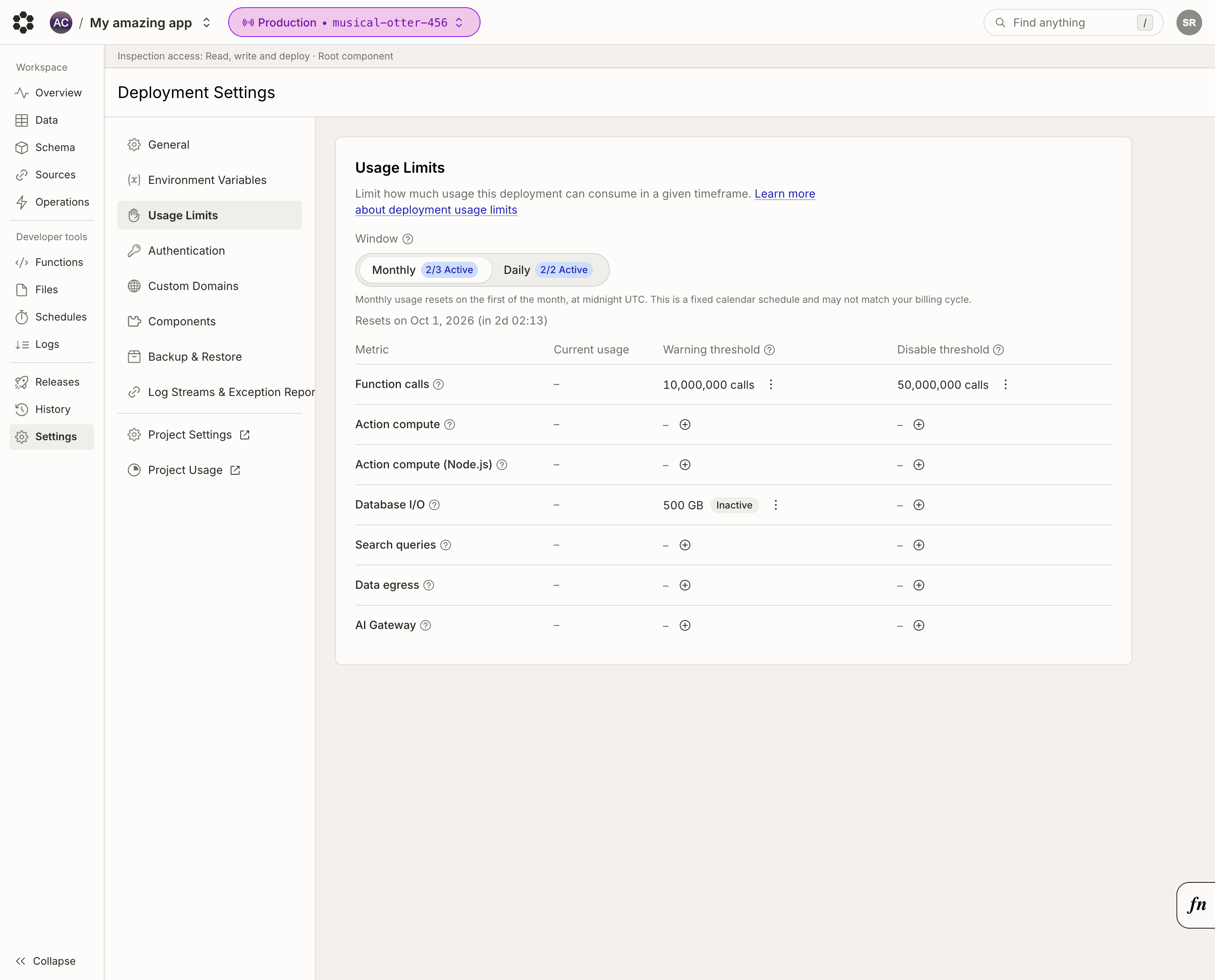
You can configure usage limits from the
[usage limits page](https://console.bijection.com)
in the console.
 ## Thresholds
Each metric supports a disable threshold. Production and preview deployments
also support a warning threshold. Each threshold is enforced over a daily or
monthly window:
* The **warning threshold** is a soft limit: when it is exceeded, an event is
recorded on the deployment's
[history page](/dashboard/deployments/history).
* The **disable threshold** is a hard limit: when it is exceeded, the deployment
is disabled for the rest of the window, and new function calls return an error
explaining that the deployment exceeded a usage limit.
When either threshold is reached on a production or preview deployment, Bijection
sends a notification email to all members of your team. Development deployments
do not receive email notifications.
A deployment disabled by a usage limit is re-enabled automatically when the
window rolls over, or as soon as you raise, disable, or delete the limit that
was triggered.
## Windows
Limits cover **calendar windows in UTC**:
* **Daily** limits reset at midnight UTC.
* **Monthly** limits reset on the first of the month, at midnight UTC.
For example, a daily disable threshold of 5 GB of database I/O counts all usage
since midnight UTC. If the deployment exceeds the threshold at 11pm UTC, it is
disabled for the remaining hour, and is re-enabled at midnight UTC.
## Available Metrics
The available metrics for usage limits are based on
Bijection Pricing
The full list of metrics you can configure a usage limit for are:
| Metric | Unit | What it counts |
| - | - | - |
| Function calls | calls | Query, mutation, action, HTTP action, and file storage calls. |
| Query/Mutation compute | GB-hours | Compute consumed running queries and mutations. This metric is only applicable to deployments running on dedicated hardware on the Bijection Business & Enterprise plans. |
| Action compute (Bijection runtime) | GB-hours | Compute consumed running actions in the Bijection runtime. |
| Action compute (Node.js) | GB-hours | Compute consumed running actions in the Node.js runtime. |
| Action compute (CPU) | GB-hours | CPU time consumed running actions. This metric replaces Action compute (Bijection runtime) for teams on the Bijection Business & Enterprise plans. |
| Database I/O | GB | Bandwidth used reading from and writing to the database. |
| Search queries | query-GB | Bandwidth used serving text and vector search queries. |
| Data egress | GB | Bandwidth used serving file downloads, outgoing fetch requests, and log stream egress. |
| AI Gateway | USD | Cost of model requests through the [AI Gateway](/ai-gateway/usage-and-billing). |
## Audit log
Every change to a deployment's usage limits is recorded on the deployment's
[history page](/dashboard/deployments/history). The history page also shows
when a limit was exceeded and when the deployment was disabled or re-enabled.
## Thresholds
Each metric supports a disable threshold. Production and preview deployments
also support a warning threshold. Each threshold is enforced over a daily or
monthly window:
* The **warning threshold** is a soft limit: when it is exceeded, an event is
recorded on the deployment's
[history page](/dashboard/deployments/history).
* The **disable threshold** is a hard limit: when it is exceeded, the deployment
is disabled for the rest of the window, and new function calls return an error
explaining that the deployment exceeded a usage limit.
When either threshold is reached on a production or preview deployment, Bijection
sends a notification email to all members of your team. Development deployments
do not receive email notifications.
A deployment disabled by a usage limit is re-enabled automatically when the
window rolls over, or as soon as you raise, disable, or delete the limit that
was triggered.
## Windows
Limits cover **calendar windows in UTC**:
* **Daily** limits reset at midnight UTC.
* **Monthly** limits reset on the first of the month, at midnight UTC.
For example, a daily disable threshold of 5 GB of database I/O counts all usage
since midnight UTC. If the deployment exceeds the threshold at 11pm UTC, it is
disabled for the remaining hour, and is re-enabled at midnight UTC.
## Available Metrics
The available metrics for usage limits are based on
Bijection Pricing
The full list of metrics you can configure a usage limit for are:
| Metric | Unit | What it counts |
| - | - | - |
| Function calls | calls | Query, mutation, action, HTTP action, and file storage calls. |
| Query/Mutation compute | GB-hours | Compute consumed running queries and mutations. This metric is only applicable to deployments running on dedicated hardware on the Bijection Business & Enterprise plans. |
| Action compute (Bijection runtime) | GB-hours | Compute consumed running actions in the Bijection runtime. |
| Action compute (Node.js) | GB-hours | Compute consumed running actions in the Node.js runtime. |
| Action compute (CPU) | GB-hours | CPU time consumed running actions. This metric replaces Action compute (Bijection runtime) for teams on the Bijection Business & Enterprise plans. |
| Database I/O | GB | Bandwidth used reading from and writing to the database. |
| Search queries | query-GB | Bandwidth used serving text and vector search queries. |
| Data egress | GB | Bandwidth used serving file downloads, outgoing fetch requests, and log stream egress. |
| AI Gateway | USD | Cost of model requests through the [AI Gateway](/ai-gateway/usage-and-billing). |
## Audit log
Every change to a deployment's usage limits is recorded on the deployment's
[history page](/dashboard/deployments/history). The history page also shows
when a limit was exceeded and when the deployment was disabled or re-enabled.