> ## Documentation Index
> Fetch the complete documentation index at: https://docs.bijection.com/llms.txt
> Use this file to discover all available pages before exploring further.
# Schema
> Visualize your deployment's schema and the relationships between tables in the console
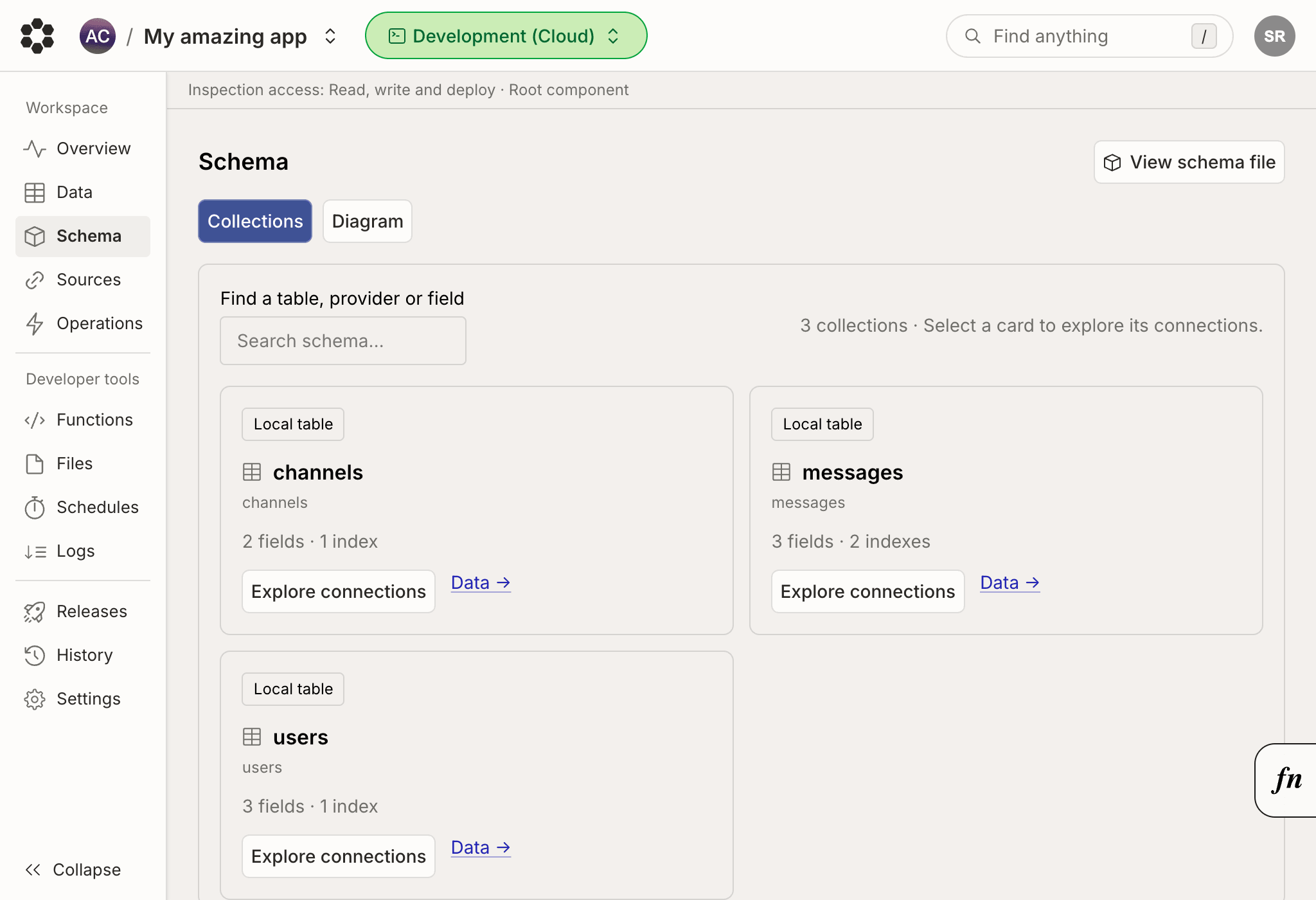 The [schema page](https://console.bijection.com) shows a
diagram of all the tables in your deployment and the relationships between them.
The diagram is built from your deployment's saved
[schema](/database/schemas) (the `bijection/schema.ts` you've pushed). Each
table is a node listing its fields and their types. Whenever a field references
another document with [`v.id("...")`](/database/schemas), an arrow is drawn
from that field to the table it points at, so you can see how your data is
connected at a glance.
If a table exists in your data but isn't declared in your schema, it's still
shown in the diagram and flagged as not being part of the schema.
If you haven't saved a schema at all, the schema page instead shows a diagram of
your *generated* schema - the tables that Bijection infers from the shape of your
existing documents. This lets you visualize your data even before you add a
`bijection/schema.ts`.
## Navigating the diagram
You can pan and zoom the diagram, and drag tables to rearrange them. Your layout
is saved per deployment, so the diagram stays how you left it the next time you
open the page.
Selecting a table opens a side panel with more detail about that table,
including the full type of each field and the table's
[indexes](/database/reading-data/indexes/indexes). From the side panel you
can jump to a referenced table in the diagram, or open the table on the
[Data page](/dashboard/deployments/data) to view and edit its documents.
## Viewing the schema file
Click the "View schema file" button in the top-right of the page to see the
saved and generated [schema](/database/schemas) for your deployment as code.
If you haven't defined a schema yet, Bijection can generate one from the documents
already in your tables, which you can copy into your `bijection/schema.ts` to get
started.
The [schema page](https://console.bijection.com) shows a
diagram of all the tables in your deployment and the relationships between them.
The diagram is built from your deployment's saved
[schema](/database/schemas) (the `bijection/schema.ts` you've pushed). Each
table is a node listing its fields and their types. Whenever a field references
another document with [`v.id("...")`](/database/schemas), an arrow is drawn
from that field to the table it points at, so you can see how your data is
connected at a glance.
If a table exists in your data but isn't declared in your schema, it's still
shown in the diagram and flagged as not being part of the schema.
If you haven't saved a schema at all, the schema page instead shows a diagram of
your *generated* schema - the tables that Bijection infers from the shape of your
existing documents. This lets you visualize your data even before you add a
`bijection/schema.ts`.
## Navigating the diagram
You can pan and zoom the diagram, and drag tables to rearrange them. Your layout
is saved per deployment, so the diagram stays how you left it the next time you
open the page.
Selecting a table opens a side panel with more detail about that table,
including the full type of each field and the table's
[indexes](/database/reading-data/indexes/indexes). From the side panel you
can jump to a referenced table in the diagram, or open the table on the
[Data page](/dashboard/deployments/data) to view and edit its documents.
## Viewing the schema file
Click the "View schema file" button in the top-right of the page to see the
saved and generated [schema](/database/schemas) for your deployment as code.
If you haven't defined a schema yet, Bijection can generate one from the documents
already in your tables, which you can copy into your `bijection/schema.ts` to get
started.