> ## Documentation Index
> Fetch the complete documentation index at: https://docs.bijection.com/llms.txt
> Use this file to discover all available pages before exploring further.
# File Storage
> Upload, download, and manage files stored in your Bijection deployment
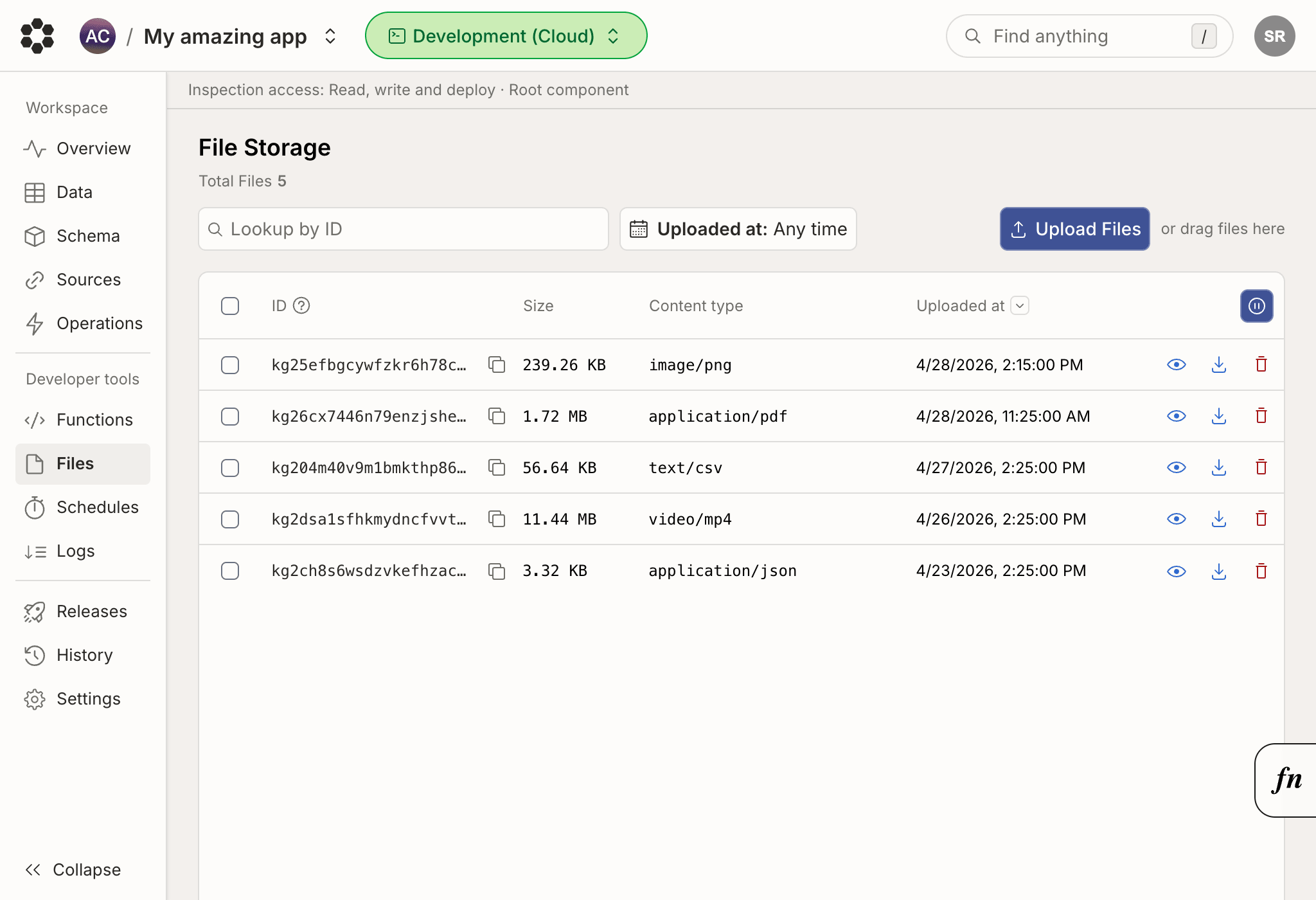
The [file storage page](https://console.bijection.com) displays
[files stored in your deployment](/file-storage/overview). The page also
shows the files' storage IDs, size, and content type. You can upload new files
and download or delete existing files.
Storage IDs might be referenced by documents in your database.
When new files are uploaded, the UI will reference the name of the recently
uploaded file. However, these names are not persisted and will no longer appear
when the page is reloaded.